

Metanorma tutorial (complete)
Introduction to Metanorma
Learning objectives for the tutorials
Before we dive into using the Metanorma toolchain, let's cover the basic ideas you need to understand to work with Metanorma. In this lesson we will cover:
- What Metanorma is
- The differences between Word and Metanorma
- The paradigms "What you see is what you get" vs. "What you see is what you mean"
- What the Metanorma workflow looks like from document creation to publication
Before we write our first Metanorma document, let us look at the foundation for all Metanorma documents: AsciiDoc. In this lesson, we will discuss what AsciiDoc is and what a typical Metanorma document looks like. You will also learn how to write AsciiDoc.
Reviewing documents is an integral part of developing a standard. The best way to review a document, is to use a version control environment that supports comments as well, such as GitHub and its feature GitHub discussions. In case your organization does not use a git-based approach, Metanorma provides a comment functionality that lets you insert your remarks and create to dos. In this lesson, you will learn:
- How to add comments using AsciiDoc markup
- How to generate a draft using the command line.
Once you are happy with your document, the next step is to generate an output to send your SDO for publishing. Since Metanorma poses some validity criteria for your document, it is normal to face some errors. Don't worry, we will go through some common errors and teach you how to resolve them. In this lesson you will learn:
- How to generate PDF, HTML, and Word output using the command line
- How to troubleshoot common errors
>> Start next lesson
What is Metanorma?
What you get is what you see vs. What you get is what you mean
Is what you see what you get?
Word is probably your go-to application for casual writing, such as letters, invitations - and with good reason, because Word has many benefits, such as:
- Creating Documents quickly
- An intuitive interface
- Printer prints exactly what you see on your screen = What you see is what you get (WYSIWYG)

However, have you ever written a longer text, with many references, like a scientific text? Then you might have experienced some pain with Word: It tends to mess up the formatting, even if you use templates. Reference management in Word is also no fun, but the worst: Word tends to crash for very long documents, like standards.
Because of these issues, another approach to creating documents is popular: "What you see is what you mean" (WYSIWYM). This concept differs from WYSIWYG because you separate the content and the layout into separate files. To tell the compiler how the text should look or behave, you use markup language. You may have heard about Markdown or LaTeX, which are popular markup languages, but Metanorma uses AsciiDoc.
The benefit is that you can publish different outputs from one source, for example into PDF or HTML. Since the layout is stored in a separate file, each output can even be styled differently.

What is Metanorma?
What is Metanorma?
Metanorma is three things in one:
- Software
- The Metanorma toolchain is the software that you use to create documents and generate output.
- Document metamodels
- Metanorma provides a document structure for standardization documents, specified in ISO 36001. Since each organization has different requirements for their standard documents, they use a "flavor" of Metanorma. A flavor is a document model that provides additional metadata to reflect the SDO's needs.
- XML schemas
- To use the defined document metamodels, there needs to be a machine-readable file so that documents can be checked against their intended structure.
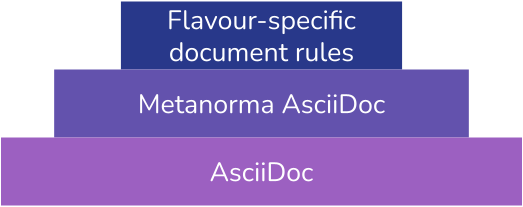
Metanorma consists of several layers of complexity, see the figure below.
The basis for each metanorma document is AsciiDoc. Since AsciiDoc itself has limited functionalities for authoring standards, Metanorma extends AsciiDoc as one part of the Metanorma toolchain (1). Metanorma AsciiDoc provides advanced features, such as automatically linking the correct standard in a bibliography section.
The final layer of complexity are flavour-specific document rules and best practices based on the document metamodels (2). For example, ISO documents must include a "Scope" section, whereas NIST requires an "Acknowledgements" section.
Metanorma has many advantages for authoring standards:
- Metanorma supports the needs of many standardization organizations, such as ISO, IETF, and many more.
- Metanorma can be extended with new document models (flavors).
- It uses the "what you see is what you mean" (WYSIWYM) approach based on AsciiDoc.
- You can style your content differently, depending on the output.
- The document models ensure complete and consistent standard documents that follow the rules of your organization.
- Metanorma can create long and complex documents without them becoming corrupted.
- Metanorma enables dynamic integration of external data into documents.
Let's explore the workflow of Metanorma in the next lesson.
>> Start next lesson
The Metanorma Workflow
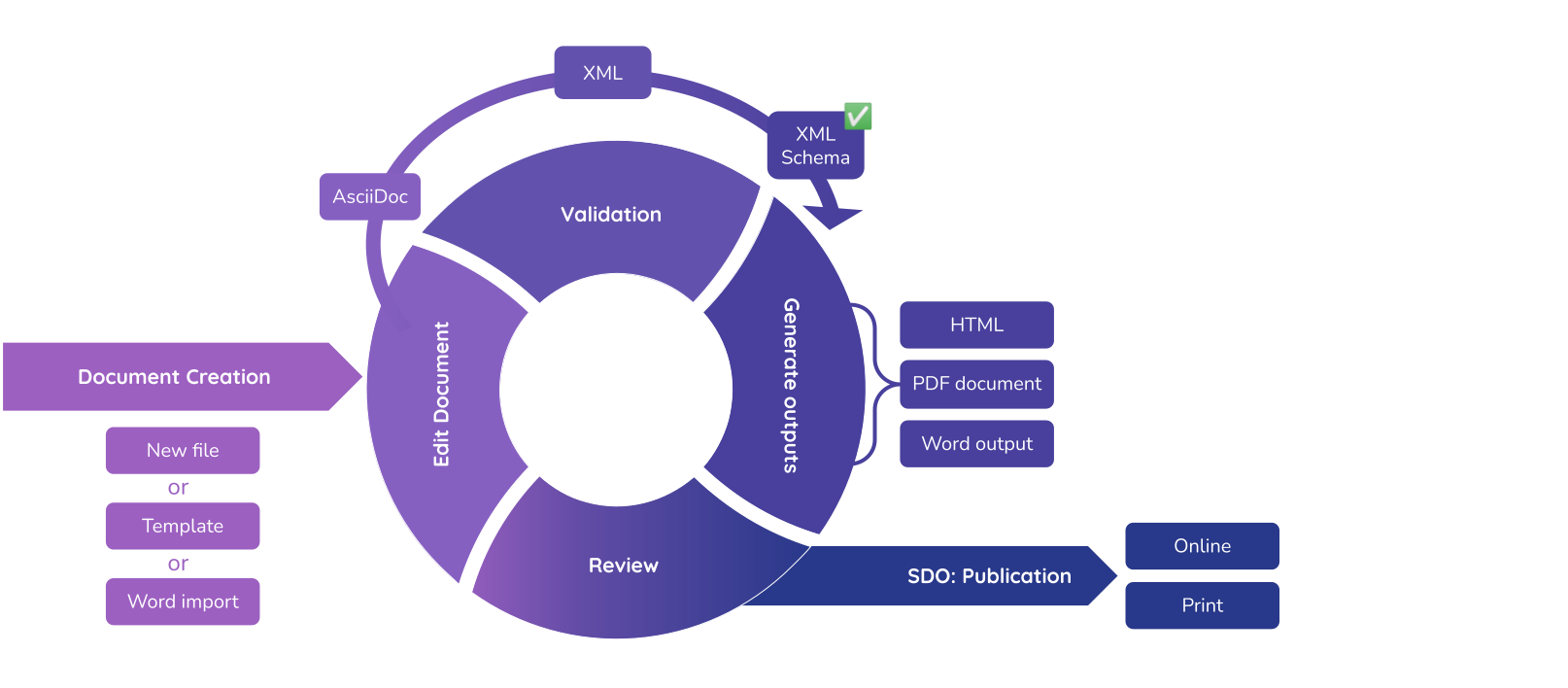
The Metanorma workflow consists of six phases:
- Document creation
- Editing the document
- Validation
- Output generation
- Review
- Publication
Document creation
You can create a new standard document either by:
- Creating a new, empty AsciiDoc file
- Using a template
- Importing a Word Document
*New file*
The easiest way is to create a document from scratch, by creating an empty AsciiDoc file (.adoc) in the desired folder.
*Templates*
Templates get you started faster, as they provide the structure of a standard document already. If your organization provides templates, you can create a new document based on a template using the command line.
*Import from Word*
Importing from Word makes sense if you are moving from Word to Metanorma and need to move several, large documents. To facilitate the migration, you can use the import tool called Reverse AsciiDoc. However, the imports are not always perfect, so you need to be familiar with the Metanorma and know how to resolve error messages. If you new to Metanorma, the simplest way is to transfer your content into Metanorma AsciiDoc manually.
Editing the document
You can edit Metanorma documents in any plain-text editor because they only consist of text. The next lesson will introduce you to the basics of AsciiDoc. These editors have been reported to work well for writing Metanorma AsciiDoc:
- Atom with Asciidoctor plugins
- Microsoft Visual Studio Code with AsciiDoc extension for live preview
Validation
Before you can generate any output, the Metanorma document needs to be checked against the document model to ensure it follows the rules of your SDO.
Since the document model is defined in an XML schema, the compiler converts the Metanorma document into a Metanorma XML file. This XML file is then checked against the SDO's XML schema. Metanorma will log all deviations from the SDO's structure or formatting on the terminal and into an error file.
- ❌ Invalid XML
- The XML file does not comply with the XML schema, or with the formatting rules defined by the SDO.
All errors are logged to the terminal and are saved to an error file (.
err.html). Often the document will render successful despite errors, but the error messages point out potential issues with the document structure. - ✅ Valid XML
- The XML file complies with the XML schema and the compiler can proceed to generate an output.
Output generation
General
The Metanorma toolchain compiles documents in the following formats:
- Metanorma XML
- HTML
- Microsoft Word
Metanorma XML
Metanorma always generates an XML output first because it is the intermediate format used to drive the other formats. The Metanorma XML file marks up the semantic content of the standards document and is therefore used during the validation stage. Metanorma then generates a presentation version of the XML (.presentation.xml), which resolves cross-references, captions, and internationalization, and is used as the basis of all other formats.
HTML
The HTML output is in HTML 5. All HTML output has a sidebar with a Javascript-generated table of contents, which is two section levels deep. Audio and video files are not supported.
Metanorma generates PDF output from XML. The styling comes from an XSL-FO stylesheet. A processing engine (Apache FOP) interprets the stylesheet and generates the PDF.
Microsoft Word
Metanorma can also generate a .doc Word output. Metanorma does not output .docx because it is easier to support all of the formatting requirements in a .doc file.
Review
Standards documents require collaboration and every SDO has its own process for reviews. Metanorma does support authors and reviewers by providing metadata that indicate in which phase the document is in and who reviewed it. You can add your remarks to a document with comments or create a to-do if you want someone to act.
Publication
Once you and your reviewers agree that the standard is ready for publishing, you send it to your standard developing organization (SDO). The SDO will publish your document in their preferred channels, such as online or print.
For organizations using the Metanorma release pipeline, publishing is automated: pushing to main triggers compilation and creates a GitHub Release with the document files and metadata. See Organization-Scale Publishing Setup for details.
Before we dive into AsciiDoc, let's summarize what we've covered so far.
>> Start next lesson
Summary
Let's recap what we've learned so far:
- Metanorma uses a what you see is what you mean (WYSIWYM) approach, meaning that the text you write is what you want to see.
- You need to render documents to have a correct visible output. The appearance is controlled in a stylesheet.
- Metanorma is an umbrella term for several things and consists of: The Metanorma toolchain, document models and a XML schema of these document models.
- Metanorma documents use Metanorma AsciiDoc markup
- When you want to generate an output, the AsciiDoc document is converted into XML in order to be checked against the XML schema.
- If the document is valid, Metanorma generates an HTML, PDF and Microsoft Word (
.doc) output.
Now that we have covered the fundamentals, let's have a look at AsciiDoc.
>> Start next lesson
Introduction to AsciiDoc
Learning objectives for the tutorials
Before we dive into using the Metanorma toolchain, let's cover the basic ideas you need to understand to work with Metanorma. In this lesson we will cover:
- What Metanorma is
- The differences between Word and Metanorma
- The paradigms "What you see is what you get" vs. "What you see is what you mean"
- What the Metanorma workflow looks like from document creation to publication
Before we write our first Metanorma document, let us look at the foundation for all Metanorma documents: AsciiDoc. In this lesson, we will discuss what AsciiDoc is and what a typical Metanorma document looks like. You will also learn how to write AsciiDoc.
Reviewing documents is an integral part of developing a standard. The best way to review a document, is to use a version control environment that supports comments as well, such as GitHub and its feature GitHub discussions. In case your organization does not use a git-based approach, Metanorma provides a comment functionality that lets you insert your remarks and create to dos. In this lesson, you will learn:
- How to add comments using AsciiDoc markup
- How to generate a draft using the command line.
Once you are happy with your document, the next step is to generate an output to send your SDO for publishing. Since Metanorma poses some validity criteria for your document, it is normal to face some errors. Don't worry, we will go through some common errors and teach you how to resolve them. In this lesson you will learn:
- How to generate PDF, HTML, and Word output using the command line
- How to troubleshoot common errors
Introduction to Metanorma AsciiDoc
Metanorma documents are written in AsciiDoc, a markup language that annotates text with processing instructions for layout.
Since AsciiDoc only consists of plain text, you can use any editor to create AsciiDoc files (.adoc files).
AsciiDoc is very similar to Markdown or Wiki formatting but provides more precise markup for creating text documents, for example to create a bibliography section or an index.
Because Metanorma fulfills the markup requirements of SDOs, Metanorma extends plain AsciiDoc. This version of AsciiDoc is called Metanorma AsciiDoc.
An AsciiDoc document consists of different levels of granularity:
- The document head (also called the header)
- Sections
- Blocks
- Inline markup
The Asciidoctor manual provides ample information about the general markup mechanisms of typical AsciiDoc.
Unsupported AsciiDoc features
While Metanorma mostly adds functionality to the AsciiDoc markup language, there are also some mechanisms, that Metanorma does not support:
- Sidebars (
asides) are not supported. Instead, they are used for reviewer comments. - Page breaks (
thematic break) are only supported in select flavors. - ASCII art/preformatted text (
literal) are only supported in select flavors.
We will have a look at these different levels of markup in the following lessons.
You can do the exercises either in the browser, or on your local machine. If you choose to use your local machine, you will need to install Metanorma and set up a new Metanorma project.
>> Start next lesson
The Header
Metadata and document attributes
General
Information about a document itself is called the "metadata" of the document. The document header is where metadata is entered. Metadata is specified by using document attributes.
Document attributes are used in the following ways:
- provide semantic information for the document
- modify visual appearance of output format
- adjust the document generation process
You can specify metadata about:
- Authors: Issuing organization, authors, and their location
- Document information: Title, language, document stages (draft, published, etc.) copyright holder, etc.
- Identifiers: Document numbers, ISBNs, URIs
- Dates: Draft dates, revision dates, publishing date, copyright year, etc.
Some metadata influence how the document is generated and should only be used by advanced users. Often, they will require familiarity with the structures and processes of the flavor's organization.
:title:, while others are not visible but still affect how your document is generated.A document attribute looks like this:
:title: My document
:novalid:
Document attributes can be used as simple flags like on/off switches, which do not take a value, but typically accept one or more values.
= Rice model <1>
:docnumber: 17301 <2>
:doctype: international-standard <3>
:copyright-year: 2021
:language: en
:mn-document-class: iso <4>
:technical-committee: Food products <5>
:mn-output-extensions: xml,html,doc,html_alt <6>
<1> Document title <2> :docnumber: is the first document attribute, and it has the value 17301 <3> :doctype: defines the type of document, for example international-standard, technical-report, guide, etc. The allowed values for this attribute are specific to each flavor. <4> :mn-document-class: indicates the Metanorma flavor the document should be checked against. <5> The committee responsible for the document. <6> mn-output-extensions specifies the generated output formats. It can take several comma-delimited values.
Which attributes to specify?
The attributes required or allowed to be specified for given document depend on the type of document and the Metanorma flavor used.
See generic attribute reference for attributes supported by most Metanorma flavors.
When using one of the officially supported Metanorma flavors, please consult your flavor's author documentation.
Re-using attributes in text
The body of the document can reference the values of document attributes. Here's an example of referencing committee-related metadata entries:
:technical-committee-number: 184
:technical-committee: Automation systems and integration
:subcommittee-number: 4
:subcommittee: Industrial data
...
This document was prepared by Technical Committee ISO/TC
{technical-committee-number}, _{technical-committee}_, Subcommittee SC
{subcommittee-number}, _{subcommittee}_.
If the corresponding document attributes are not populated in the header, then the references themselves will not be populated.
Dealing with Unicode characters
Document attribute values that contain Unicode characters must be entered directly as Unicode.
Any non-ASCII characters in document attribute values, or dashes for compound titles, will need to be entered as Unicode.
If you need to have non-ASCII characters in document title, or dashes for compound titles, you will need to enter them directly as Unicode.
Document attribute values, unlike document text, cannot deal with HTML entities.
As an example, this would work:
:title-part-en: Information Technology—Security
:title-main-fr: Spécification et méthodes d'essai
Entering them as HTML Entities or XML Entities would not:
:title-part-en: Information Technology\—Security
:title-main-fr: Sp\écification et m\éthodes d'essai
include::learn/exercises.adoc[tag=exercise-2-1]
Let's add some sections to our document in the next lesson.
>> Start next lesson
Sections
Document sections
General
Sections define hierarchy levels in a document, as chapters do. In AsciiDoc, sections are encoded with titles prefixed by equal signs (=).
- The document title is considered the highest section in the hierarchy, and is created by prepending a
=sign in front of the heading. - Subsequent sections are encoded with titles prefixed with least two equal signs:
==indicates a first-level section;===indicates a second-level section;====indicates a third-level subsection;- and so on.
.Example of setting document and section titles
= Document title
== Section 1
=== Section 1.1
==== Section 1.1.1
===== Section 1.1.1.1
== Section 2
=== Section 2.1
...
Section types
Automatic type recognition
Metanorma automatically detects these standard section types when their titles match common patterns in any supported language:
- Abstract
- Foreword
- Introduction
- Acknowledgements
- Executive summary
- Scope
- Normative references
- Terms and definitions
- Symbols and abbreviated terms (or individual Symbols/Abbreviated terms sections)
- Bibliography
metanorma-extension(special container section)
The content body, or annexes, are entered as normal sections without need for pre-defined titles.
Fixed section names are specific to either the preface of a document, or the main body; so for example an instance of "Introduction" the main body of the text will not be treated as part of the preface.
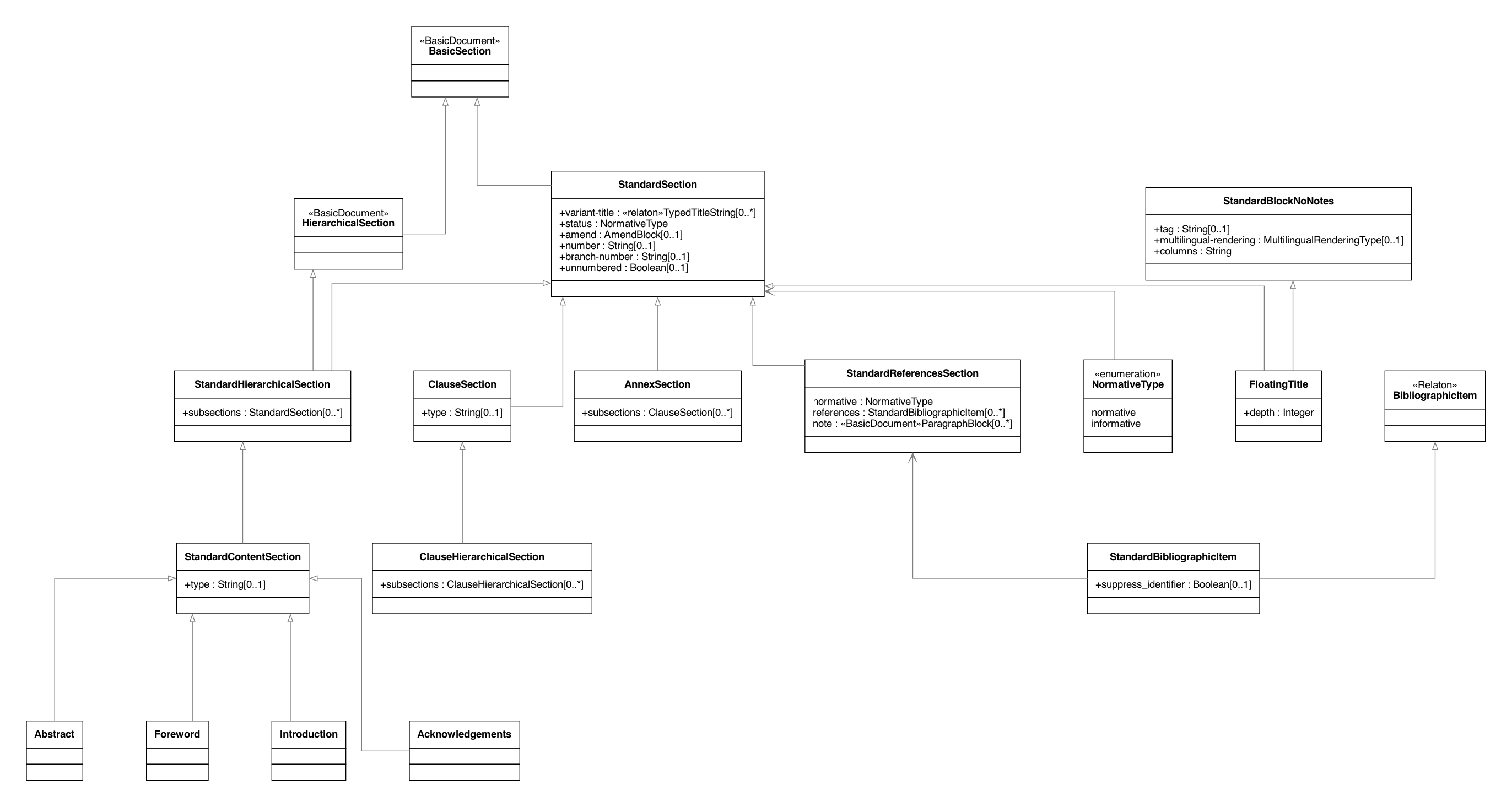
Flavours may overrule these pre-defined section titles with titles of their own, or may choose not to recognise at least some of them as special sections.
Manual type specification
If the section title does not match standardized title patterns, the section type must be explicitly declared using attributes.
[type_attribute]
== Your Custom Title
Supported section type declarations include the following.
| Section type | Standardized title | Declaration |
| Metanorma Extension | "Metanorma-Extension" | [heading=metanorma-extension] |
| Abstract | "Abstract" | [abstract] |
| Foreword | "Foreword" | [heading=foreword] |
| Preface | No standardized title | [preface] |
| Introduction | "Introduction" | [heading=introduction] |
| Acknowledgments | "Acknowledgements" | [acknowledgments] |
| Executive summary metanorma-standoc ≥ v3.0.7 | "Executive summary" | [executivesummary] |
| Scope | "Scope" | [heading=scope] |
| Bibliography | "Bibliography" or "Normative references" | [bibliography] |
| Terms and definitions | "Terms and definitions" | [heading=terms and definitions] |
| Symbols and abbreviated terms | "Symbols", "Abbreviated terms", "Symbols and abbreviated terms" | [heading=symbols and abbreviated terms] |
| Index | "Index" | [index] |
| Appendix | No standardized title | [appendix] |
There are some restrictions on the number of sections of certain types that can be included in a document.
For all documents:
- only one "Abstract" section is allowed
- only one "Acknowledgements" section is allowed
- only one "Executive summary" section is allowed
- only one "Index" section is allowed
In most flavours and document types:
- only one "Terms and definitions" section is allowed
For sections that are limited to one instance, if a second matching clause is found, it is treated as a normal clause.
This behavior can be overridden by specifying the section type in a heading attribute: this is interpreted as the user explicitly wanting that section type to apply metanorma-standoc ≥ v2.10.0. Setting heading=clause will suffice to ensure that a clause is treated as a normal clause.
The following example indicates usage of the section titles.
= Document title
== Abstract
== Foreword
[preface] <1>
== Introduction to version 3 of this standard
[bibliography] <2>
== Normative references
[heading=terms and definitions] <3>
== Terms, definitions, and abbreviations
[bibliography]
== Bibliography
...
[appendix,obligation=informative] <4>
== Additional content
...The above section titles as detected by Metanorma are case-insensitive. While ISO Directives Part 2 demands clause titles to be in sentence case, some organizations utilize title case.
A dedicated topic expands on "`Terms and definitions`" section grammar.
Automated title recognition (by English titles such as Scope, Normative references, etc.) applies only at the topmost level of clause. If a clause is to be recognised with a special type and nested at a deeper clause level, the heading attribute still needs to be used metanorma-standoc ≥ v2.8.6; otherwise, the clauses will be treated as normal clauses, without the special semantics or formatting of those clause types. For example,
== General
[heading=scope]
=== Scope
[bibliography,heading=normative references]
=== Normative references
[heading=terms and definitions]
=== Terms and definitions
In most flavours of Metanorma, if the title is indicated or guessed correctly, it is overwritten by the standard title required by the SDO and internationalization; for example, in ISO,
[heading=foreword]
== Fore Word
will still be rendered as
Foreword
in English, and
Avant-propos
in French; the supplied text is ignored.
Moreover, the title of a Terms and definitions clause will be determined automatically, based on its contents; a Terms and definitions clause which contains a symbols clause but not an abbreviated terms clause will automatically be titled Terms, definitions and symbols in English (Termes, définitions et symboles in French.
In order to force the provided title to be retained in the clause, despite the SDO requirements for the flavour of Metanorma, use the attribute keeptitle=true metanorma-standoc ≥ v2.8.6. For example,
[heading=foreword,keeptitle=true]
== Fore Word
will be encoded and rendered as a foreword, but it will retain its title as Fore Word.
Blank subclause headings
Blank subclause headings can be given like this:
=== {blank}These are used when you want to give a subclause number for a new subclause, but without an associated header text. For example,
=== Physical and chemical characteristics
==== {blank}
The mass fraction of moisture, determined in accordance with...
renders as
*4.2. Physical and chemical characteristics*
4.2.1. The mass fraction of moisture, determined in accordance with...
This notation should not be used to implement paragraph numbering as required for e.g. metanorma-un. The UN Metanorma flavor treats each paragraph as a distinct clause and automatically numbers it.
Inline headings
Inline subclause headings (e.g. for test methods) are indicated by preceding the heading with the [%inline-header] option attribute. So in the Rice Model document,
[%inline-header]
==== Sieve,
with round perforations of diameter 1,4 mm.
renders as
A.2.1.1. Sieve, with round perforations of diameter 1,4 mm.
Variant titles
Variant titles metanorma-standoc ≥ v1.10.5 are entered as paragraphs with a variant-title role attribute within a clause, as follows:
=== Proper title
[.variant-title,type=sub]
This is the variant title
Text of section.
Variant titles of type sub are rendered as subtitles of clauses.
Floating titles
A “floating title” is a title that is placed outside the numbered hierarchy of clauses. This means that a floating title is not uniquely referable like normal clauses.
Since the hierarchical structure of standards documents is critical to their proper referencing, floating titles are commonly disallowed by standards documents. Nonetheless, for legacy support reasons, floating titles are supported in Metanoma metanorma-standoc ≥ v1.11.4:
=== Section 2.1
[discrete]
==== I am a floating title within section 2.1
==== Section 2.1.1Sections deeper than 5 levels
Standards can contain many levels of embedding: ISO/IEC DIR 2 only considers it a problem if there are more than 7 levels of embedding.
To realise higher levels of embedding, prefix a 5-level section title with the attribute level=:
// Six equal signs for five levels
====== Clause 5A
[level=6]
====== Clause 6A
[level=7]
====== Clause 7A
[level=7]
====== Clause 7B
[level=6]
====== Clause 6B
====== Clause 5B
This generates the following ISO XML:
<clause id="_" inline-header="false" obligation="normative">
	<title>
		Clause 5
	</title>
	<clause id="_" inline-header="false" obligation="normative">
		<title>
			Clause 6
		</title>
		<clause id="_" inline-header="false" obligation="normative">
			<title>
				Clause 7A
			</title>
		</clause>
		<clause id="_" inline-header="false" obligation="normative">
			<title>
				Clause 7B
			</title>
		</clause>
	</clause>
	<clause id="_" inline-header="false" obligation="normative">
		<title>
			Clause 6B
		</title>
	</clause>
</clause>
<clause id="_" inline-header="false" obligation="normative">
	<title>
		Clause 5B
	</title>
</clause>
and the rendering would be something like
*1.1.1.1.1 Clause 5A*
*1.1.1.1.1.1 Clause 6A*
1.1.1.1.1.1.1 Clause 7A
1.1.1.1.1.1.2 Clause 7B
*1.1.1.1.1.2 Clause 6B*
1.1.1.1.2 Clause 5B
include::learn/exercises.adoc[tag=exercise-2-2]
We've built the basic structure of a Metanorma document. Let's add some content to our document in the next lesson.
>> Start next lesson
Blocks
Blocks
Information that forms a logical segment, such as a paragraph or a list, is called a block. Most blocks start and end with a delimiter which is a matching sequence of characters. The delimiters tell the compiler that the text they contain belongs together.
I'm a paragraph and I don't need a block delimiter.
<1>
. I'm a list item and also do not need a delimiter
. I'm the second list item
. I'm list item number three
//// <2>
I'm a comment.
////
[source, python] <3>
----
print("Hello World!")
----
There are many types of blocks in AsciiDoc, such as:
- Paragraphs
- Lists
- Tables
- Images
- Admonitions (Note, Caution, Warning, etc.)
- Examples
- Code samples
- Mathematic formulas
- Term definitions
- Comments
- Reviewer Notes
Let's look at lists in the next lesson.
>> Start next lesson
Lists
Metanorma AsciiDoc supports three types of lists:
- Unordered lists
- Ordered lists
- Definition lists
Unordered lists
Unordered lists are bulleted lists, entered using the asterisk (*) symbol. Unordered lists can be nested by prefixing additional asterisks.
The main changes compared to the previous edition are:
* updated normative references;
* deletions:
** deletion of 4.3. [nested list item]
** deletion of 4.4. [nested list item]
Ordered lists
Ordered lists are invoked by beginning the line with a dot .. The list items are numbered automatically. The default list uses arabic numbers, but can vary depending on the defined style of the Metanorma flavor.
. First Step
. Second Step
. Third Step
Definition lists
Definition lists pair a term and a description together in a list, separated by two or more colon symbols (:).
Definition lists are often used to define abbreviations, units or symbols.
Definition lists follow the syntax of:
`term:: Definition`stem:[w]:: is the mass fraction of grains with a particular defect in the test sample;
stem:[m_D]:: is the mass, in grams, of grains with that defect;
stem:[m_S]:: is the mass, in grams, of the test sample.\stem:[] is used for mathematical formatting, and results in italics. So w is an italic w, w; \m_D is an italic m with a D subscript: mD.include::learn/exercises.adoc[tag=exercise-2-3-1]
Great work! Let's have a look at term definitions in the next lesson.
>> Start next lesson
Term definitions
If you want to cite a term throughout the standard, include it in the terms and definitions section. Term definitions vary from definition lists, as they are more granular and provide metadata to mark features such as alternative terms or deprecated terms. Let's have a look at a term entry:
== Terms and definitions <1>
=== husked rice <2>
deprecated:[cargo rice] <3>
Paddy from which the husk only has been removed. <4>
[.source] <5>
<<ISO7301,clause 3.2>>, The term "cargo rice" is shown as deprecated, and Note 1 to entry is not included here
=== milled rice
alt:[white rice] <6>
term:[husked rice] from which almost all of the bran and embryo have been removed by milling. <7>
=== extraneous matter
alt:[EM]
domain:[rice] <8>
organic and inorganic components other than whole or broken kernels
[example] <9>
Foreign seeds, husks, bran, sand, dust.
include::learn/exercises.adoc[tag=exercise-2-3-2]
The next type of block we will cover are tables.
>> Start next lesson
Tables
General
Tables are useful for displaying data of the same structure.
Metanorma AsciiDoc tables are required to handle the full range of complexity of standardization documents, and is therefore significantly more powerful than typical AsciiDoc tables.
Basics
Metanorma AsciiDoc supports all basic table syntaxes of AsciiDoc, including:
- cells spanning multiple rows and columns;
- horizontal alignment;
- vertical alignment metanorma-standoc ≥ v1.5.3.
Given AsciiDoc is a plain-text format, it uses specific symbols to determine where new table rows and columns begin.
[cols="1,1"] <1>
.A table with a title <2>
|=== <3>
|Cell in column 1, header row |Cell in column 2, header row <4>
|Cell in column 1, row 2
|Cell in column 2, row 2 <5>
|=== <6>Table width
The table width can be set with the width attribute metanorma-standoc ≥ v1.3.21.
width- Width of table. Valid values listed below.
- {percentage}
% - a percentage (e.g.
70%) - {pixels}
px - a pixel count (e.g.
500px) full-page-width- PDF-specific. Specifies that the table spans the whole page width regardless of the number of columns on the page. metanorma-standoc ≥ v2.8.6NoteThis feature is not supported in typical AsciiDoc.
text-width- PDF-specific. Specified that the table will be as wide as the text column that contains it. metanorma-standoc ≥ v2.8.6NoteThis feature is not supported in typical AsciiDoc.
- {percentage}
width attribute values align with HTML CSS and HTML 4 behavior.[width=70%]
|===
| Vehicle | Passenger
| Mazda 3 | Bob
| Tesla Model Y | Alice
|===[width=full-page-width]
|===
|A |B
|C |D
|===Column width
Table columns can also have their widths set metanorma-standoc ≥ v1.5.3.
Table column widths must be enumerated explicitly per column to generate column widths.
.Example of table with equal width columns
The following syntax will be processed as generating equal width columns.
[cols="1,1,1"][cols="3"] is considered a shorthand to [cols="1,1,1"], but this is not supported in Metanorma AsciiDoc.For long tables that need to continue onto the next page in the DOC or PDF rendering of a document, Metanorma, by default, will automatically repeat the header after every page break.
To suppress this behavior, you can apply the noheader value to the options attribute using its formal (options=noheader) or shorthand (%noheader) syntax. There is a caveat that this option will also deactivate the implicit assignment of the header to the first row of the table (see Implicitly assign header to the first row). Therefore, you will need to apply the header tag (h|) to every cell of the first row to define it as the header.
Supplementary components
A table allows the following supplementary components:
- Key
- Text
- Notes
- Footnotes
The order of rendering of these components are in the following order:
- Key > Text > Note > Footnote
Key
Key can be followed by a definition list for the variables used in the table, just like formulae.
This definition list is marked up with [%key] metanorma-standoc ≥ v1.6.3.
The syntax is as follows:
|===
|Location |Distance
|Over there | 6
|===
[%key] <1>
{some-id}:: {some-description} <2>
.Table containing a key / legend
|===
|Location       | Distance
|Over here      | s
|Over there     | m
|Way over there | l
|===
[%key]
stem:[s]:: Short distance
stem:[m]:: Medium distance
stem:[l]:: Far away
A key can also be a paragraph preceding, following, or instead of the definition list; the following syntax is also allowed metanorma-standoc ≥ v3.3.0
[%key]
Paragraph used instead of definition list
[%key]
--
Open block allowing multiple paragraphs and definition lists to be combined into a single key
a::b
c::d
Text may also follow after the definition list in a key
--\Key, though that is not recommended.Notes and footnotes
Metanorma AsciiDoc tables behave differently from typical AsciiDoc with notes and footnotes due to the requirements of standardization documents.
Specifically:
- table cell footnotes (
footnote:[...]) are rendered inside the table; - notes (
NOTE: ...) following the table are rendered inside the table footer.
Table 1 in the Metanorma ISO Rice example document illustrates a large range of table formatting options.
Statement concerning units
A statement concerning units used can be added to a table, indicating the units of measurement used in the table.
The units statement is encoded as a NOTE of type units ([NOTE,type=units]).
The statement is rendered in the top-right corner of the table metanorma-iso ≥ v2.3.6.
|===
|Location |Distance
|Over there | 6
|===
[NOTE,type=units]
Distance in kilometres
Statement concerning requirements
A statement concerning requirements used can be added to a table.
The requirements statement is encoded as a NOTE of type requirement ([NOTE,type=requirement]).
The statement is rendered with the other table notes in the table footer metanorma-iso ≥ v3.0.5. Unlike other table notes, it is not numbered or labelled as a note.
|===
|Location |Distance
|Over there | 6
|===
[NOTE,type=requirement]
The distance shall be verified independently
[NOTE]
"Over there" is to be understood as not over here
Multiple header rows
Metanorma AsciiDoc supports the option of multiple header rows via attribute headerrows to deal with the complexity of standardization documents' tables requiring labels, variables, and units to lining up in the header.
[headerrows=2]
|===
.2+|Sample 3+^| Value
| Test A | Test B | Test C
| Component 1 | Pass | Fail | Pass
|===
This renders as:
| Sample 3+^h | Value |
| Test A h | Test B h |
| Test C | Component 1 |
| Pass | Fail |
| Pass |
Table styling
General
Metanorma supports customized styling of tables to create visually distinctive tables for highlighting important information in standards documents.
Styling is achieved through a limited subset of CSS properties applied to rows and cells.
Whole table
Styling is applied to the full table through table attributes:
css-style- The attribute
css-styleapplies CSS styles to an entire table metanorma-standoc ≥ v3.1.1Example== Fossil analysis test [#table1] [cols="<,^,^,^,^",options="header,footer",headerrows=2,css-style="border: none; color: purple; background-color: #eeeeee"] .Maximum permissible mass fraction of defects in dinosaur fossil specimens |=== .2+^|Defect 4+^| Maximum permissible mass fraction of defects in fossil specimens + stem:[w_max] + % | in raw excavated fossils td-style:[color: green] td-style:[background-color: blue] | in prepared fossil specimens | in consolidated fossils | in reconstructed specimens tr-style:[background-color: red] | Sediment contamination: organic footnote:[Organic contamination includes plant matter, modern bone fragments, wood particles, etc.] | 5,0 | 2,0 | 3,0 | 1,0 // not rendered list here | Sediment contamination: inorganic footnote:[Inorganic contamination includes sand, clay, mineral deposits, etc.] | 3,0 | 1,5 | 2,0 | 1,0 | Modern bone contamination td-style:[background-color: blue]| 1,0 td-style:[border: 1px dashed #FF0000; color: yellow]| 0,5 | 0,8 tr-style:[background-color: green] | 0,3 | Unprepared fossil material | Not applicable | 2,0 | 1,5 | 1,0 | Prepared fossil material | 2,0 | Not applicable | 1,5 | 1,0 | Consolidated fossil material | 1,5 | 1,0 | Not applicable | 0,8 | Reconstructed fossil material | 1,0 | 0,8 | 0,5 | Not applicable | Fragment loss | 0,2 | 0,1 | 0,1 | 0,1 | Surface weathering | 8,0 footnote:fossilmass[The maximum permissible mass fraction of defects shall be determined with respect to the total specimen mass after preparation.] | 5,0 | 6,0 footnote:fossilmass[] | 3,0 | Chemical damage | 6,0 | 4,0 | 5,0 | 3,0 | Mechanical damage | 10,0 | 6,0 | 8,0 | 4,0 | Incomplete preservation | 15,0 footnote:fossilmass[] | 12,0 | Not applicable | Not applicable | Mineral replacement | 20,0 | 18,0 | 15,0 footnote:fossilmass[] | 12,0 | Partial pyritization | Not applicable | Not applicable | 8,0 footnote:fossilmass[] | 6,0 | Tool marks | Not applicable | Not applicable | 2,0 | 1,0 | Matrix residue | 3,0 footnote:fossilmass[] | 2,0 | 1,5 footnote:fossilmass[] | 1,0 5+a| Live organisms shall not be present. Dead organisms shall be included in organic contamination. |===
Custom classes
A custom CSS class can be attached to a table using the class attribute metanorma-standoc ≥ v3.4.8. This allows CSS or JavaScript to target specific tables in HTML output -- for example, to make a particular table sortable.
[class="sortable"]
|===
|A |B
|===
The custom class is appended to the table's built-in class rather than replacing it, so the flavour's default table styling is preserved and the custom class is added alongside it. Multiple space-separated classes are passed through verbatim:
[class="sortable fixed"]
|===
|A |B
|===class attribute affects HTML output only. It is not applied to Word output, whose CSS handling is more restrictive; a custom-class table still renders normally in Word, but without the custom class.class attribute does not affect a table's borders or shading. Those are controlled independently by [%plain] (see below): a table with a custom class still receives the flavour's default table styling unless [%plain] is also given.Row and cell styling
Metanorma provides two primary commands for applying CSS styles to table elements:
tr-style:[...]- Applies CSS styles to an entire table row metanorma-standoc ≥ v3.0.4
td-style:[...]- Applies CSS styles to a specific table cell metanorma-standoc ≥ v3.0.4
Metanorma also supports the attribute css-style which applies to tables themselves metanorma-standoc ≥ v3.1.1
Flavours of Metanorma often apply border or shading to tables by default, as prescribed by the SDO. In order to overrule these defaults, and reset a table not to have any styling, give it the attribute [%plain] metanorma-standoc ≥ v3.1.2
When a table is not [%plain], the default ISO-style border treatment applied by most flavours consists of:
- a 1px table border with no cell spacing;
- a heavy top border on the first row, with bold header cells;
- light separators between body rows, and a heavy border on the last row.
Giving a table [%plain] removes all of this, so its appearance must be built from scratch using css-style, tr-style:, td-style:, or a custom class.
Supported CSS properties
The CSS properties supported in Metanorma for table rows and cells are as follows. Properties that are not listed here are not supported.
background-color- Sets the background color of a cell or row.
color- Sets the text color of a cell or row.
border- Sets all border properties in one declaration metanorma-standoc ≥ v3.0.7
border-*attributes- Including
border-width,border-style,border-color, and directional variants such asborder-top-stylemetanorma-standoc ≥ v3.0.7NoteTheborder-*properties follow standard CSS conventions, allowing you to target specific sides of a cell or row.
.Property value examples
CSS properties accept standard CSS values:
background-color:red,#ff0000,rgb(255,0,0)color:blue,#0000ff,rgb(0,0,255)border:1px solid blackborder-width:1px,2px,thinborder-style:solid,dashed,dottedborder-color:black,#000000
Application methods
Styles can be applied in three ways:
- Row-level styling: Apply to an entire row using
tr-style:[...]at the end of the last cell in that row - Cell-level styling: Apply to a specific cell using
td-style:[...]immediately after the cell's content, before the next cell - Combined styling: Apply multiple styles to the same element by using multiple style macros in sequence
[css-style="background-color: yellow"]
|===
|A |B |C tr-style:[background-color: red]
h|1 td-style:[background-color: green] td-style:[color: blue]
|2 tr-style:[background-color: green]
|3
|4 |5 td-style:[background-color: green] | 6
|===
Here:
background-color: redis applied to the first rowbackground-color: greenis applied to the second rowbackground-color: greenandcolor: blue(as a combination of styles) are applied to the first (header) cell of the second rowbackground-color: yellow, inherited from the table style, is applied to the third rowbackground-color: green, overriding the table style (as do all the foregoing background-color instances), is applied to the second cell of the third row
.Table with color-coded cells indicating results
|===
|Test ID |Test Method |Result |Conformity tr-style:[background-color: #eeeeee]
|TC-001 |Method A |Pass td-style:[color: green] |Conforms
|TC-002 |Method B |Fail td-style:[color: red] |Does not conform
|TC-003 |Method A |Not tested td-style:[color: gray] |Incomplete
|===
Here:
background-color: #eeeeeeis applied to the header rowcolor: greenis applied to the first cell of the second rowcolor: redis applied to the second cell of the third rowcolor: grayis applied to the first cell of the third row
.Table with border styling
|===
|Standard |Edition |Publication Date tr-style:[border-bottom: 2px solid black]
|ISO 8601 td-style:[border-right: 1px solid gray] |Third edition |2019-02
|ISO 19005-1 td-style:[border-right: 1px solid gray] |First edition |2005-10
|ISO/IEC 10646 td-style:[border-right: 1px solid gray] |Sixth edition |2020-05
|===
Here:
border-bottom: 2px solid blackis applied to the header rowborder-right: 1px solid grayis applied to the first cell of the second rowborder-right: 1px solid grayis applied to the second cell of the second rowborder-right: 1px solid grayis applied to the first cell of the third row
Accessibility metadata
Metanorma AsciiDoc supports assigning accessibility metadata for tables, including alt text and summary text, via table attributes.
alt- alternate text that describes the table;
summary- summary text that describes a summary of the content provided by the table.
Both are rendered as a summary of the table for accessibility.
[alt=Table of tested components,summary=Table of components being tested in Tests A to C]
.2+|Sample 3+^| Value
| Test A | Test B | Test C
| Component 1 | Pass | Fail | Pass
|===Complex table examples
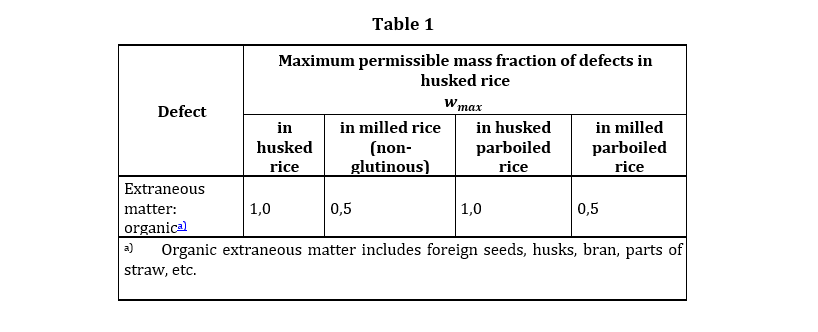
Example table 1
[headerrows=2,alt=Table of maximum mass fraction of defects in husked rice,summary=Table enumerating the permissible mass fraction of defects in husked and various classes of milled rice,width=70%]
|===
.2+|Defect 4+^| Maximum permissible mass fraction of defects in husked rice +
stem:[w_max]
| in husked rice | in milled rice (non-glutinous) | in husked parboiled rice | in milled parboiled rice
| Extraneous matter: organic footnote:[Organic extraneous matter includes foreign seeds, husks, bran, parts of straw, etc.] | 1,0 | 0,5 | 1,0 | 0,5
|===
which renders:
Example table 2
Table 1 in the Metanorma ISO Rice example document illustrates a large range of table formatting options. Search for #table1.
Table sources
A table can incorporate an indication of its source.
The source is expected to be a bibliographical reference metanorma-standoc ≥ v2.4.2.
Multiple sources can be given with separate [.source] blocks.
Any such sources need to appear after the table, and before any notes which will also be included in the table.
|===
| Head | Head
| Row  | Row
|===
[.source]
<<iso1212>>
NOTE: Note 1|===
| Head | Head
| Row | Row
|===
[.source]
<<iso1212>>, reformatted
[.source]
<<iso1213>>,
NOTE: Note 1
NOTE: Note 2The first source will indicate it is "reformatted" as the text after the comma is treated as the modification, while the second source will indicate it is "modified" since there is a trailing comma but no description of modification.
include::learn/exercises.adoc[tag=exercise-2-3-3]
Let's look at inserting images next.
>> Start next lesson
Images
Images
General
Images are inserted into a Metanorma AsciiDoc document through the image command.
There are two types of AsciiDoc images:
- block image;
- inline image.
Metanorma AsciiDoc supports most of the features of image defined in Asciidoctor AsciiDoc.
Please refer to figures for details on how to use images within figures.
This page mainly describe Metanorma AsciiDoc behavior. For typical image command attributes, refer to Asciidoctor AsciiDoc.
Block image
A block image is displayed as a discrete element, i.e., on its own line, in a document.
The syntax used to enter a block image is as follows.
The image:: line is preceded by a blank line, entered on a line by itself, and then followed by a blank line.
image::{PATH}[]Where PATH is the image path.
In Metanorma, block images are always entered as a figure. Please refer to the documentation on Figures.
[[my-anchor]] <1>
.Title for image <2>
image::images/path.png[Alt text] <3>
<1> Optional anchor for referencing <2> Image title <3> Image command with path and optional alt text. If no alt text is provided, leave the square brackets at the end empty (image::path[]).
Inline image
An inline image is displayed in the flow of another element, such as a paragraph.
This is useful when you want to incorporate buttons or other icons inside the text flow.
Inline images are inserted using the inline image command: image:[] (instead of image::[]).
This is an inline image:{PATH}[], appearing within a paragraph.Where PATH is the image path.
Data URIs
Metanorma allows Data URIs as the address for an image:
image::data:image/png;base64,ivBO...[alt text]By default, images are stored in Metanorma Semantic and Presentation XML as Data URI, rather than as links to external image files, so that Metanorma XML and HTML can be distributed as single files, without bundling image files separately.
This behaviour can be disabled by setting :data-uri-image: false metanorma-standoc ≥ v1.11.0.
In order to prevent the Metanorma processor from running out of memory, a maximum permitted size for Data URI-encoded images is enforced.
- By default, the maximum size is
13981013bytes. This corresponds to the Base64 encoding of a 10 MB image. - The size can be changed by setting
:data-uri-maxsize:. - If
:data-uri-maxsize:is set to0, no maximum size is enforced. metanorma-standoc ≥ v2.9.1.
Image directory root path
The root path for all image paths can be defined at the document-level, through the document attribute :imagesdir:.
= Document title
:imagesdir: my-images <1>
...
image::myimage01.png[] <2>
<1> The document attribute :imagesdir: will set all root paths of the image command to the specified path. <2> The reference to myimage01.png is joined with the path set at :imagesdir:, which results to my-images/myimage01.png.
More details of the :imagesdir: attribute can be found at documentation of Asciidoctor AsciiDoc.
Alternative images
Metanorma allows alternate images to be specified for different outputs. This is done through an open block tagged as [altmedia] metanorma-standoc ≥ v3.3.2.
The block specifies the alternate images through inline image macros in a definition list (these need to be marked up as image:[ not image::[). The definition terms in the definition list are the keywords specifying when each image should be used. By default, the keywords are the possible output formats of Metanorm, pdf, doc, html. A fallback value of default is also supported, and is used if the current output format is not one of the specified output formats.
The inline images can have a media="" attribute, giving the CSS media query to be used to select the image in HTML output.
[altmedia]
.Image with alternatives
--
html:: image:spec/assets/correct.png[200,300,media="(width >= 800px)"]]
doc:: image:spec/assets/corrupt.png[300,600]
default:: image:spec/assets/warning_test.png[auto,auto,alttext]
--
Attributes
Image size
General
Size of an image can be modified via the height and width attributes.
height- Height of image. Valid values listed below.
auto- (default) Image will be shown according to the best visual settings determined by Metanorma
- {pixels}
px - Fixed height in pixels (px). The
pxsuffix can be omitted.
width- Width of image. Valid values listed below.
auto- (default) Image will be shown according to the best visual settings determined by Metanorma
- {pixels}
px - Fixed width in pixels (px). The
pxsuffix can be omitted. full-page-width- PDF-specific. Specifies that the image spans the whole page width regardless of the number of columns on the page. metanorma-standoc ≥ v2.8.6NoteThis feature is not supported in typical AsciiDoc.
text-width- PDF-specific. Specified that the image will be as wide as the text column that contains it. metanorma-standoc ≥ v2.8.6NoteThis feature is not supported in typical AsciiDoc.
Fixed dimensions
.Image resizing specifying height and width attributes in pixels
image::logo.jpg[height=150px,width=100px]In the height and width attributes, the px suffix may be omitted.
.Image resizing with values omitting px unit in height and width
image::logo.jpg[height=150,width=100]Scaling according to aspect ratio
The auto value indicates that the dimension does not have a fixed size but retain the aspect ratio of the original image.
image::logo.jpg[height=150,width=auto]An unspecified dimension is considered auto.
image::logo.jpg[height=150]PDF-specific width values
In the PDF paged layout, the width attribute can take on additional values.
The values full-page-width and text-width are used in PDF to indicate how wide an image is rendered against text, particularly if the text is formatted in multiple columns metanorma-standoc ≥ v2.8.6.
[width=full-page-width]
image::abc.png[][.figure,width=full-page-width]
====
image::abc.png[]
====Other attributes
image command, please refer to the Asciidoctor AsciiDoc documentation.include::learn/exercises.adoc[tag=exercise-2-3-4]
Let's look at admonitions next.
>> Start next lesson
Admonitions
General
Admonition blocks are typically inserted into the main content of a document providing guidance or request readers to exercise caution.
Types of admonitions
Metanorma supports the following admonition types:
- NOTE
- Informative guidance.
- TIP
- Useful information.
- EDITOR
- Editor's notes that will appear in a draft document.
- IMPORTANT
- Important information on the application of the document.
- WARNING
- Information that includes safety concerns.
- CAUTION
- Information that the reader must be aware.
- TODO
- Author's or editor's internal notes, not rendered.
The following types of admonitions require an atypical syntax for access:
- DANGER
- Information that can lead to safety concerns if not covered.
- SAFETY PRECAUTION
- Information that relates to safety precautions.
In addition, the following types are recognised by specifying [type=...] as a block attribute on one of the latter four built-in admonition types in block mode (other than NOTE):
statement: typographically separate statements in mathematics, such as propositions, proofs, or theorems.editorial: annotation by document editors, intended for all readers of the document and not just its authors.box: box element, intended as standalone sidebar which can be referenced from within the document.
[TIP,type=box]
====
This is a box
====
Other types can also be entered.
Specifying admonitions
There are two ways to declare an admonition: in a single paragraph and as a block.
Single paragraph admonitions
Start a new line with the admonition type in all caps and a colon and write your admonition.
NOTE: Advice on when to use which admonition type is specified in ANSI Z535.6.Block admonitions
The syntax for a block admonition is as follows.
[NOTE] <1>
==== <2>
Content of the admonition block. <3>
Unlike an admonition paragraph, it may contain any AsciiDoc content.
==== <4>== General requirements
[NOTE]
====
This is just a note providing guidance.
====
[IMPORTANT]
====
This is an important message.
====
== Safety requirements
[WARNING]
====
This important notice applies to safety concerns.
====
[CAUTION]
====
This notice must not be ignored.
====Specifying DANGER and SAFETY
If the admonitions “Danger” and “Safety Precautions” are needed, they should be indicated through a type attribute, which will override the admonition type appearing.
The type value is matched case-insensitively against the admonition labels defined in the i18n internationalization dictionary; the predefined keys are danger and safety precautions. Apart from case, the value must match the dictionary key exactly: type=Safety Precautions matches the predefined safety precautions label, but type=Safety Precaution (singular) does not, and no admonition label will be rendered for it. Additional admonition types can be supported by adding entries under admonition in the i18n dictionary.
.Example of specifying Danger and Safety Precautions messages
[type=Danger]
CAUTION: Do not perform maintenance tasks while the machine is still operating.
[WARNING,type=Safety Precautions]
====
This is a safety precaution
spanning multiple-blocks.
====
Folding notes
General
Notes that are not at the end of a clause are folded into the preceding block, if that block is not delimited (so that the user could not choose to include or exclude a note).
That is, notes immediately following these block types are automatically folded into the preceding element:
- list
- formula
- figure
- table
Prevent folding
To prevent a note from folding into the preceding block, add the attribute keep-separate to the note metanorma-standoc ≥ v1.3.29.
* A
* B
* C
[NOTE,keep-separate=true]
====
Note not folded into its preceding block
====
Without the keep-separate=true markup, the note would be attached to the list, and numbered accordingly.
[NOTE]
This note will be folded in the preceding block.
NOTE: This one too.
Notes may be given a type through the attribute type metanorma-standoc ≥ v1.4.1.
[NOTE,type=bibliographic]
====
Bibliographic note
====
Explicitly-defined terminology entry notes
Normally, notes are only tagged as term notes when they appear in the context of a terms section.
Rarely, term notes need to be presented in isolation, including in ISO Amendments or Technical Corrigenda.
To achieve that, mark the note up with %termnote metanorma-standoc ≥ v2.1.2.
[NOTE%termnote]
====
Bibliographic note
====
Whole document admonitions
Admonitions (“NOTE”, “IMPORTANT”, “WARNING”, “CAUTION” etc.) in the document body (i.e. within a main body clause) can be stated to apply to the entire document by moving them to the start of the document body, before the main sequence of clauses.
This can be done by giving them the attribute beforeclauses=true metanorma-standoc ≥ v1.3.30.
== Scope
[IMPORTANT,beforeclauses=true]
====
This important notice applies to the entire document.
====
My scope text...
Preface admonitions
Admonitions in the document prefaces (including in the Foreword) can be stated to apply to the entire preface by moving them to the start of the preface, before the Foreword. This can be done by giving them the same attribute beforeclauses=true metanorma-standoc ≥ v1.5.2.
= Document title
:document-attribute: XXXX
[IMPORTANT,beforeclauses=true]
====
This important notice applies to the entire document.
====
== Foreword
My foreword text...
Cover page admonitions
An admonition in the document prefaces can instead be flagged to be rendered on the cover page of the document, through coverpage=true metanorma-standoc ≥ v2.0.8.
= Document title
:document-attribute: XXXX
[IMPORTANT,coverpage=true]
====
This important notice appears on the cover page.
====
== Foreword
My foreword text...
Normally, the label of the type of admonition (NOTE, IMPORTANT, etc) is inserted at the start of the admonition in rendering. This may not be desirable, especially for coverpage admonitions.
Inserting the admonition type is suppressed through notag=true metanorma-standoc ≥ v2.0.8.
= Document title
:document-attribute: XXXX
[IMPORTANT,coverpage=true,notag=true]
====
This important notice appears on the cover page.
====
== Foreword
My foreword text...
Explicitly-defined terminology entry notes
Normally, notes are only tagged as term notes when they appear in the context of a terms section.
Rarely, term notes need to be presented in isolation, including in ISO Amendments or Technical Corrigenda.
To achieve that, mark the note up with %termnote metanorma-standoc ≥ v2.1.2.
[NOTE%termnote]
====
Bibliographic note
====
include::learn/exercises.adoc[tag=exercise-2-3-5]
Great progress so far! Let's look at code samples in the next lesson.
>> Start next lesson
Code Samples
Now it's your turn. Fill the document with the following attributes:
- [ ] Document title
- [ ] Your name
- [ ] Your organization using the
:publisher:attribute - [ ] Your organization's address
- [ ] The document class:
standoc - [ ] The document type:
document - [ ] The language
- [ ] The copyright year
To declare an attribute, follow the syntax :attribute: value.
For example: :publisher: Ribose Inc.
Look at the prepopulated Metanorma document. There are many clauses describing the content but there are sections missing to form a correct standard document.
Add the following sections:
- [ ] Foreword on line 13
- [ ] Introduction on line 21
- [ ] Terms and definitions on line 27
- [ ] Bibliography on line 60
Add lists to the prepopulated document.
- [ ] Add an ordered list in lines 17-24.
- [ ] Add an unordered list in lines 36-40.
- [ ] Add a definition list in lines 46-48.
Ordered list items start with a dot, followed by a blank: . List item.
Unordered list items start with an asterisk, followed by a blank: * List item.
To write a definition list, follow the syntax:
- `term
- Definition`
Create a term definition entry for the term "immature kernel":
- [ ] Add an alternative term ("unripe kernel")
- [ ] Add a deprecated term ("raw kernel")
- [ ] Add a definition: kernel, whole or broken, which is unripe and/or underdeveloped.
The structure for a term definition looks like this:
=== Term
alt:[alternative term]
deprecated:[deprecated term]
definition
Let's compare rice against wheat in a table:
- [ ] Create an empty three column table with seven rows.
- [ ] Add a table title: "Nutrient profile of rice vs. wheat"
- [ ] Let's make the first column a bit wider than the other two columns in the ratio 3:2:2 by using the
colsattribute. - [ ] Populate the table like this:
.Nutrient profile of rice vs. wheat
| Nutrient | Rice | Wheat |
| Energy (kJ) | 1736 | 1574 |
| Protein (g) | 8.1 | 14.5 |
| Fat (g) | 0.8 | 1.8 |
| Carbohydrates (g) | 91 | 82 |
| Fiber (g) | 1.5 | 14 |
| Sugar (g) | 0.1 | 0.5 |
The structure for a three column table looks like this:
|===
|||
|||
|||
|===
Insert an image of a rice plant in line 17 by following the steps below:
- [ ] Add an image macro.
- [ ] Populate the
image::macro with this link:
https://upload.wikimedia.org/wikipedia/commons/2/27/Oryza_sativa_-_K%C3%B6hler%E2%80%93s_Medizinal-Pflanzen-232.jpg- [ ] Add a picture title (Oryza sativa)
- [ ] Create a key with three entries
A:: Rice - A flowering specimen of the variety _melanoceras_ Alef.
B:: blossom panicle
C:: crop panicleThe syntax for images is: image::URL[].
Make sure to include the square brackets after the link.
Turn the existing text into admonitions:
- [ ] Turn the text in line 15 into an
IMPORTANTadmonition. - [ ] Turn the text in lines 17-19 into a
WARNINGadmonition. - [ ] Turn the text in line 21 into a
NOTEadmonition.
To create admonitions that span several lines, you need to declare a block.
[NOTE]
====
This is a long note.
It contains three lines.
Line three.
====
There are some code samples in the document but they are not neatly packed into source blocks, so they cause trouble.
- [ ] Create a source block with the attribute
rubyfor the code in lines 14-29. - [ ] Create a source block with the attribute
pythonfor the code in line 32 - [ ] Create a source block with the attribute
javafor the code in lines 35-39.
Source code blocks look like this:
[source,language]
----
Code
----
Format the text using the following formatting:
- [ ] Add underline formatting to "Earth institute" in line 18
- [ ] Add bold formatting to "from Africa, for Africa" in line 20
- [ ] Add italic formatting to The New York times and International Herald Tribune in line 21
- [ ] Add smallcaps formatting to all instances of "NERICA"
- [ ] Add a footnote on line 22 explaining the term "perennial". Footnote text: A perennial plant lives more than two years.
Let's add some index entries to the text.
- [ ] Add a visible index entry to "UN Millennium Development project" in line 17
- [ ] Add an invisible three level index entry after NERICA in line 21: NERICA, economy, Green revolution
- [ ] Add an invisible two level index entry in line 22 after rice: rice, perennial
- [ ] Create a new index section at the bottom of the document
Visible index terms: \((Level 1 index term))
Hidden index terms: (\((Level 1 index term, Level 2 index term, Level 3 index term)))
Let's add some references to the sample document.
Internal references:
- [ ] Create an anchor for the table called
table1 - [ ] Reference the table in lines 30 and 36.
Bibliographic references: The text references some standards which don't have a matching entry in the bibliography section. Add the following references:
- [ ] ISO712, ISO712:2009, Cereals and cereal products — Determination of moisture content — Reference method
- [ ] ISO7301, ISO 7301:2011, Rice -- Specification
- [ ] IEC61010-2, IEC 61010-2:1998, Safety requirements for electric equipment for measurement, control, and laboratory use -- Part 2: Particular requirements for laboratory equipment for the heating of material
Setting an anchor:
[[anchor]]Referencing an anchor:
<<anchor>>The text contains some typos. Mark the errors using comments.
- [ ] Line 16: weter
- [ ] Line 18: exseed
- [ ] Line 20: eyes
Enter the command metanorma document.adoc into the terminal and see what happens.
The following document doesn't compile because there are some errors.
- Enter
metnanorma exercise-4.adocto trigger the build process - Have a look at the error messages
- Try to debug the document. If you get stuck, have a look at the hints.
- Once you solved the errors, run
metanorma exercise-4.adocagain to see if the document compiles.
Lines 12 and 43: Both sections have the anchor [prefatory-clause]]</code> assigned. You can solve this error by renaming the anchors.</p></div><div class="example-block"><div class="example-label">Hint Error 2</div><p>Line 76: The file that should be included cannot be found. Since the scope section already contains text, you can delete the reference.</p></div><div class="example-block"><div class="example-label">Hint Error 3</div><p>Line 420: The image attribute contains a whitespace after <code>image::</code>, so the path is invalid. Delete the whitespace.</p></div><p>We're done with blocks - good job! The next lesson covers inline markup.</p><p>>> Start next lesson</p></section></section><section id="_inline_markup"><h2 id="_inline_markup">Inline Markup</h2><p>Let's look at these features in the following lessons.</p><p>>> Start next lesson</p><section id="_inline_markup_text_markup"><h3 id="_inline_markup_text_markup">Text markup</h3><h2 id="text-formatting">Text formatting</h2><p>Metanorma supports extensive inline formatting functionality. The following formatting macros are available in Metanorma.</p><section id="_basic_markup"><h4 id="_basic_markup">Basic markup</h4><section id="_basic_markup_general"><h5 id="_basic_markup_general">General</h5><p>AsciiDoc allows you to:</p><ul><li>Emphasize words in <strong>bold</strong> using asterisks</li><li><em>Italicise</em> words with underscores</li><li>Apply <code>monospace</code> format using backticks</li><li>Specify superscript and subscript characters (CO<sub>2</sub>, x<sup>4</sup>)</li></ul><div class="example-block"><div class="example-label">Example of basic inline markup</div><div class="code-block" data-code-block><pre><code class="language-adoc">*bold*
_italic_
`monospace`
^superscript^
~subscript~</code></pre></div><p>Renders as:</p><p><strong>bold</strong> <em>italic</em> <code>monospace</code> <sup>superscript</sup> <sub>subscript</sub></p></div></section><section id="_basic_markup_strikethrough"><h5 id="_basic_markup_strikethrough">Strikethrough</h5><p>The <code>strike</code> command renders text with a middle line strikethrough.</p><p>The syntax is as follows:</p><div class="code-block" data-code-block><pre><code class="language-asciidoc">[strike]#text#</code></pre></div><p>Where:</p><ul><li><code>text</code> is the text to be rendered with the strikethrough style</li></ul><p>.Illustration of strikethrough text in Metanorma.</p><div class="example-block"><div class="example-label">Example</div><div class="code-block" data-code-block><pre><code class="language-asciidoc">[strike]#strike through text#</code></pre></div><p>renders:</p><img src="/assets/author/topics/inline_formatting/fig-strikethrough.png" alt="Illustration of strikethrough text" loading="lazy" decoding="async" /></div></section><section id="_basic_markup_small_caps"><h5 id="_basic_markup_small_caps">Small caps</h5><p>The <code>smallcap</code> command renders text in small capital letters.</p><p>The syntax is as follows:</p><div class="code-block" data-code-block><pre><code class="language-asciidoc">[smallcap]#text#</code></pre></div><p>Where:</p><ul><li><code>text</code> is the text to be rendered in small caps</li></ul><p>.Illustration of small caps text</p><div class="example-block"><div class="example-label">Example</div><div class="code-block" data-code-block><pre><code class="language-asciidoc">[smallcap]#small caps text#</code></pre></div><p>renders:</p><img src="/assets/author/topics/inline_formatting/fig-smallcaps.png" alt="Illustration of small caps text in Metanorma" loading="lazy" decoding="async" /></div></section><section id="_basic_markup_underline"><h5 id="_basic_markup_underline">Underline</h5><p>The underline command renders text with an underline. [added in <a href="https://github.com/metanorma/metanorma-standoc/releases/tag/v1.7.2" target="_blank" rel="noopener">https://github.com/metanorma/metanorma-standoc/releases/tag/v1.7.2</a>].</p><p>The syntax is as follows:</p><div class="code-block" data-code-block><pre><code class="language-asciidoc">[underline]#text#</code></pre></div><p>Where:</p><ul><li><code>text</code> is the text to be underlined</li></ul><p>.Illustration of underlined text</p><div class="example-block"><div class="example-label">Example</div><div class="code-block" data-code-block><pre><code class="language-asciidoc">[underline]#underline text#</code></pre></div><p>renders:</p><img src="/assets/author/topics/inline_formatting/fig-underline.png" alt="Illustration of underlined text in Metanorma" loading="lazy" decoding="async" /></div></section><section id="_basic_markup_ruby"><h5 id="_basic_markup_ruby">Ruby</h5><p>Ruby annotations in East Asian text are provided [added in <a href="https://github.com/metanorma/metanorma-standoc/releases/tag/v2.7.5" target="_blank" rel="noopener">https://github.com/metanorma/metanorma-standoc/releases/tag/v2.7.5</a>] using the <code>ruby:</code>{annotation}<code>[{base text}]</code> macro.</p><p>The <code>ruby</code> command supports these optional parameters:</p><ul><li><code>lang=</code> for language of annotation</li><li><code>script=</code> for script of annotation</li><li><code>type=</code> for the type of annotation (<code>pronunciation</code> or <code>annotation</code>, with <code>pronunciation</code> as the default value).</li></ul><div class="code-block" data-code-block><pre><code class="language-asciidoc">ruby:とうきょう[東京]
ruby:とうきょう[lang=ja,script=Hira,type=pronunciation,東京]
ruby:Tōkyō[type=pronunciation,script=Latn,東京]
ruby:ライバル[type=annotation,親友]
ruby:とう[東] ruby:きょう[京]
ruby:Tō[script=Latn,東]ruby:kyō[script=Latn,京]</code></pre></div><p>Metanorma supports "double-sided" Ruby annotations, with annotations both above and below characters; these are marked up as nested Ruby annotation macros, with the deeper nested annotation assumed to be the annotation below the characters.</p><div class="code-block" data-code-block><pre><code class="language-asciidoc">ruby:とう[ruby:tou[東] ruby:なん[ruby:nan[南\]] の方角
ruby:たつみ[ruby:とう[東\]{blank}ruby:なん[南\]]
ruby:プロテゴ[ruby:まも[護\]{blank}れ]!
ruby:プロテゴ[れ{blank}ruby:まも[護\]]!
As of this writing, double-sided annotations are not supported in Word, and the nested annotations are realised as bracketed text.
Capitalisation
Capitalisation may be applied automatically in the rendering of documents, despite not being present in the source material; for example, titles and captions may be title-cased or put in all caps. In order to prevent a span of text automatically having its case changed, use CSS styling to set its CSS text-transform property to "none" isodoc ≥ v2.8.5:
.Example of a word in a title not to be capitalized
:title: [css text-transform:none]#IoT# and content standards
...
=== Approaches to [css text-transform:none]#IoT#
As shown, such styling extends to document titles as document attributes.
Custom character sets
When a private use codepoint is used in a document, reflecting an agreement between the document author and the document renderer, but not a standard like Unicode, the custom character set that includes that codepoint needs to be flagged. So U+F8D0 is the Klingon letter for "a" in the Conscript Unicode Registry, but the Kanji-Katakana hybrid of 訁and コ (equivalent to 講) in the BabelStone PUA.
In order to flag such a custom interpretation of the codepoint, the interpretation can be named in a formatting directive, flagged as custom-charset metanorma-standoc ≥ v2.6.3. For example:
[custom-charset:conscript]#\\uf8d0#
[custom-charset:babelstone]#\\uf8d0#
In order to be rendered, a font implementing that interpretation needs to be indicated as a processing hint for Metanorma. This is done with the Presentation XML metadata directive :presentation-metadata-custom-charset-font: {name of interpretation}:"{name of font}", as a document attribute, giving a comma-delimited list of charset-font pairs. For instance:
:presentation-metadata-custom-charset-font: conscript:"Code 2000",babelstone:"BabelStone PUA"
:fonts: "Code 2000";"BabelStone PUA"
As with CSS declarations, any font specified as a custom charset font also needs to be passed to Metanorma in the :fonts: document attribute.
For a more deep explanation about encoding custom characters, see Encoding and rendering special characters in Metanorma.
Numeric ranges
Numeric ranges, like dates (e.g., 1981–1995), make use of en dashes in between the numbers, usually without any white space around.
At the time writing, there is no AsciiDoc encoding to render en dashes.
In Metanorma, there is a vision of implementing a semantic encoding for numeric ranges, perhaps an option like range:[n,m] or shorthands like n..m.
For the time being, the existent workaround for such cases is the use of entity codes, more specifically:
&‌ndash;.Examples of encoding numeric ranges
See chapters 15–17...
Issues 18–20 are in fact a single issue...
_Laser Physics_ *17* 1017–1024 (2007).
renders:
See chapters 15–17...
Issues 18–20 are in fact a single issue...
Laser Physics 17 1017–1024 (2007).
Character substitutions
Metanorma AsciiDoc supports Asciidoctor-style character substitutions as shown in table-char-sub.
Metanorma AsciiDoc also recognises HTML and XML character references, and decimal and hexadecimal Unicode code points.
.Supported Metanorma AsciiDoc character substitutions
| Source | Rendered as | Note |
| (C) | (C) (Unicode 'Copyright Sign' U+00A9) | |
| (R) | (R) (Unicode 'Registered Sign' U+00AE) | |
| (TM) | (TM) (Unicode 'Trade Mark Sign' U+2122) | |
- | — (Unicode 'Em Dash' U+2014) | See NOTE below. |
| ... | ... (Unicode 'Horizontal Ellipsis' U+2026) | |
| -> | -> (Unicode 'Rightwards Arrow' U+2192) | |
| => | => (Unicode 'Rightwards Double Arrow' U+21D2) | |
| <- | <- (Unicode 'Leftwards Arrow' U+2190) | |
| <= | <= (Unicode 'Leftwards Double Arrow' U+21D0) | |
| ’` | Smart single quote, smart apostrophe | |
| ”` | Smart double quote |
- only occurs when placed between two word characters, between a word character and a line boundary, or flanked by spaces. Flanking spaces (as in x -- y) are rendered as thin spaces (Unicode 'Thin Space' U+2009).In addition to these character substitutions, Metanorma converts straight quotes to smart quotes in postprocessing: see Smart quotes for the associated rules. To keep a specific run of text as straight quotes (for example, literal characters quoted from a specification), use `pass-format:straightquotes[...`]. AsciiDoc's native plus-delimited inline passthrough (+...+) does not prevent this conversion, because smart quotes are applied in postprocessing after AsciiDoc passthroughs are resolved.
CSS declarations
The css command is used to wrap content with a CSS declaration (MDN) metanorma-standoc ≥ v2.1.6.
This feature only applies to HTML output.
style attribute.The syntax is as follows:
[css {css-directive}]#{styled-text}#Where:
- {css-directive} is a CSS declaration
- {styled-text} is text where the CSS declaration is to be applied
.Example of applying a custom CSS declaration to content
[css font-family:"Noto Sans JP"]#お好み焼き#
[css font-family:"Noto Sans Canadian Aboriginal"]#ᓀᐦᐃᔭᐍᐏᐣ#[css font-family:...] needs to be passed to Metanorma for processing by specifying it in the :fonts: document attribute.Identifier
The identifier command, used to indicate that its contents are an identifier as semantic markup (and not to be processed as a hyperlink) metanorma-standoc ≥ v2.1.2.
The syntax is as follows:
identifier:[my-identifier]Where:
my-identifieris the identifier to be encoded.
This functionality is very useful for encoding URIs, which can be virtually indistinguishable from URLs that can be resolved. URIs very often cannot be resolved since they are simply namespaced identifiers.
.Example of rendering a URI using the identifier command
identifier:[https://schemas.isotc211.org/19115/-1/mdb/1.3]renders:
.Example of rendering a URN using the identifier command
identifier:[urn:iso:std:iso:8601:-1:en]renders:
urn:iso:std:iso:8601:-1:en
Semantic spans
The span command is used to introduce semantic markup into Metanorma text metanorma-standoc ≥ v2.1.6.
The syntax is as follows:
span:category[text]Where:
categoryis a semantic label for the content given astexttextis the textual content
Here, the text is tagged as belonging to category.
A semantically-tagged text with span is not normally rendered any different to normal, although the semantic markup introduced can be used to influence rendering.
Nesting of styles
Character styles can be nested within each other, with both constrained and unconstrained formatting marks.
*Boldmono__space__*Footnotes
General
Footnotes are useful for adding remarks to content without distracting from the reading flow.
Metanorma AsciiDoc supports:
- inline footnotes
- multi-paragraph footnotes
Inline footnotes
Footnotes are added to a document using the footnote command (1).
The syntax is demonstrated as:
Oryza sativafootnote:[Sativa means "cultivated"], is rice that is farmed commercially.Multi-paragraph footnotes
The multi-paragraph footnote command footnoteblock:[id] allows for specification of multi-paragraph content within a footnote, through a named note block. metanorma-standoc ≥ v1.6.4.
The id is the identifier of a note containing the contents of the footnote.
The following syntax is used:
... footnoteblock:[my-anchor] ... <1>
...
[[my-anchor]] <2>
[NOTE] <3>
--
Multi-paragraph footnote content.
--This is a paragraph.footnoteblock:[id1] This continues the paragraph.
[[id]]
[NOTE]
--
This is
a multi-paragraph
footnote
--Named footnotes and duplicate footnotes
In some cases, identical footnote content can apply to multiple places. Metanorma AsciiDoc supports named footnotes that facilitate reuse without repeated definitions.
By default, Metanorma already detects whether footnote text is reused. When the text of a footnote is repeated in two different places, the same footnote number in both places, rather than treat the repetition as a new footnote. Assignment of IDs is therefore optional.
The following syntax is used:
... footnote:{id}[text] ... <1>
... footnote:{id}[] ... <2>A bold statement!footnote:disclaimer[Opinions are my own.]
Another outrageous statement.footnote:disclaimer[]Special footnotes
Table footnotes
Footnotes immediately placed after a table are considered a "table footnote", which renders the footnote at the table footer, within the table.
Table footnotes are numbered separately from normal footnotes.
Figure footnotes
Footnotes immediately placed after a figure are considered a "figure footnote", which renders the footnote at the bottom of the figure.
Figure footnotes are numbered separately from normal footnotes.
Suppressed references in figure footnotes
In some cases, the footnote reference number appears inside the image in a figure, next to the part of the image that it is intended to explain. If that is the case, the footnote reference number should not appear separately as text. In order to address this case, footnotes can be specified to hide their reference number, by prefixing the footnote text with hiddenref% metanorma-standoc ≥ v3.0.3. The reference number will still appear in the footnote body.
For instance, if an image already contains footnote reference a):
───────────────▄▄───▐█ a)
───▄▄▄───▄██▄──█▀───█─▄
─▄██▀█▌─██▄▄──▐█▀▄─▐█▀
▐█▀▀▌───▄▀▌─▌─█─▌──▌─▌
▌▀▄─▐──▀▄─▐▄─▐▄▐▄─▐▄─▐▄
we can footnote the image without repeating the a) with the following markup:
[figure]
====
image::evolution.png{blank}footnote:[hiddenref%A depiction of evolution]
====
This will be rendered as:
───────────────▄▄───▐█ a)
───▄▄▄───▄██▄──█▀───█─▄
─▄██▀█▌─██▄▄──▐█▀▄─▐█▀
▐█▀▀▌───▄▀▌─▌─█─▌──▌─▌
▌▀▄─▐──▀▄─▐▄─▐▄▐▄─▐▄─▐▄
a) A depiction of evolution
Without the hiddenref%, the a) would be displayed twice, once inside the figure, and once added by Metanorma.
Document title footnotes
Footnotes on document titles are recognised metanorma-standoc ≥ v1.6.1, but by default they are not rendered, because of how document title pages are processed separately in Metanorma via Liquid templates.
Document title footnotes are moved into /bibdata/note[@type = "title-footnote"], and are treated as document metadata, as are document titles themselves. The location of the footnote within the title is not preserved.
include::learn/exercises.adoc[tag=exercise-2-4-1]
Let's look at a more advanced form of inline formatting: index entries
>> Start next lesson
Index Terms
General
Metanorma supports index entries with primary, secondary and tertiary index terms. metanorma-standoc ≥ v1.3.10.
Primary index terms are listed under the first-level index, the secondary index terms are listed under the primary index terms' sub-index, and the tertiary index terms are listed under the secondary index term's sub-index.
Index term behavior differs per rendered output format:
- In PDF, indexes are rendered as references to page numbers.
- In HTML and DOC, indexes are rendered as references to the nearest labelled block; a note, example, figure, formula etc., if the index term is contained within it, or a clause or subclause, otherwise.
Index term links are only rendered in certain flavours, and do not appear otherwise in DOC, PDF or HTML output.
Getting started
Before you define an index term, your document needs a section where the index terms can appear. To create an index, define a level 1 section (==) marked with the style index at the end of your document.
[index]
== Index
Index entries can consist of up to three levels using a comma to separate the terms.
Metanorma provides two options to create an index entry:
- Visible index terms are words within the text that are annotated with an index entry using double parentheses.
\((Level 1 index term)) - Hidden index terms are index entries that are not visible in the final output and are generated using triple parentheses.
(\((Level 1 index term, Level 2 index term, Level 3 index term))). These allow the index to include optional subterms and sub-subterms; they also allow the index term to differ from what actually appears in the text.
Let's have a look at an example:
The Lady of the Lake, her arm clad in the purest shimmering samite,
held aloft Excalibur from the bosom of the water,
signifying by divine providence that I, ((Arthur)), <1>
was to carry Excalibur (((Sword, Broadsword, Excalibur))). <2>
Index placement
If any index terms are present in a document, and the current flavour supports indexes, then an index section will be automatically generated and appended to the end of the document.
To override the title of the index section, or indicate where it should be placed, use the index section markup shown below.
[index]
== Index
Any index will be appended after any content you may choose to place in the index section, but indexes typically appear with no preface.
Automated index terms
If the document attribute :index-terms: is used, all terms (and symbols) are indexed automatically in postprocessing.
The document does not need to include explicit index terms for them metanorma-standoc ≥ v1.11.3.
Rendered index term syntax
Metanorma index entries are entered through two different syntaxes. metanorma-standoc ≥ v1.3.10.
Rendered index term: +((Term))+
- Produces the output “Term”; and
- Links to the primary index term of the same name, “Term”.
Hidden index term: +(((IndexTerm1)))+, +(((IndexTerm1, IndexTerm2)))+ or +(((IndexTerm1, IndexTerm2, IndexTerm3)))+
- Produces no output; and
- Links to the primary index term
IndexTerm1. And if provided, links to the secondary nesting,IndexTerm2and the tertiary nestingIndexTerm3.
.Example of specifying rendered index term and hidden index terms
The Lady of the Lake, her arm clad in the purest shimmering samite,
held aloft Excalibur from the bosom of the water,
signifying by divine providence that I, ((Arthur)),
was to carry Excalibur (((Sword, Broadsword, Excalibur))).
Rich-text formatting in index terms
Rich-text formatting in index terms is supported metanorma-standoc ≥ v1.7.0.
signifying by divine providence that I, ((*Arthur*)),
was to carry Excalibur (((Sword~E~, stem:[sqrt(E)], Excalibur))).Entry ranges
Metanorma supports index entries that involve ranges metanorma-standoc ≥ v1.7.0, using the command index-range:to[...].
The command itself accepts an AsciiDoc index entry, such as +((...))+ or +(((...)))+.
The index entry range starts at the location of the index-range command, in the same way as the index command it contains; the end of the range is the element with the anchor to, and that is expected to be provided as a bookmark.
signifying by divine providence that I, index-range:end-range-1[((*Arthur*))],
was to carry Excalibur index-range:end-range-2[(((Sword~A~, stem:[sqrt(2)], Excalibur)))].
...
and so forth.[[end-range-1]]
...
_Sic explicit fabula._[[end-range-2]]
The preceding example has a visible index entry for Arthur, ranging from the location of +Arthur+ up to end-range-1, and a hidden index entry for SwordA, ranging from the location of +SwordA+ up to end-range-2.
Cross-references
Metanorma also supports “see” and “see also” cross-references between index terms metanorma-standoc ≥ v1.6.5, using the index command.
The command takes at least two parameters:
- the primary index term to be cross-referenced;
- the target of the cross-reference;
- optionally, the secondary and tertiary index term to be cross-referenced.
index:see[Satchmo,Louis Armstrong]
index:see[James Brown,influences,Hank Ballard and the Midnighters]
index:also[guitar,electric,technique,Jimi Hendrix]
Rendered as:
- Satchmo, see Louis Armstrong
- James Brown
- influences, see Hank Ballard and the Midnighters
- guitar
- electric
- technique, see also Jimi Hendrix
include::learn/exercises.adoc[tag=exercise-2-4-2]
In the next lesson, we will cover references and links.
>> Start next lesson
References
Links and cross-references
References are an integral part of standards. The main mechanism for references are anchors and destinations. There are four types of references:
- Hyperlinks to an external source, for example a link to a website
- Metadata references
- Internal references to a section, image, table, etc.
Hyperlinks
Metanorma AsciiDoc lets you include links to external sources, and sources to files within the same project.
To reference an internal source:
- Use the
link:command to include a link to a file. The syntax looks like this:\PATH[]. - Add link text in square brackets after the path.Example of an internal linkadoc
Download the latest link:downloads/report.pdf[Report]!
To reference an external source:
- Paste the URL into the document.
- Add link text in square brackets after the URL (optional)
URL[Link text].Example of an external linkadochttp://www.iso.org/[International Organization for Standardization].
*Adding accessibility in URIs*
To add accessibility URIs, use the ,title=... option in the square brackets. The option corresponds to HTML's alt text a@title attribute.
http://www.iso.org[International Organization for Standardization,title=This is a tooltip for the link]Metadata references
Every document contains a set of metadata to describe the document. You can insert a metadata reference by putting the attribute in curly braces {attribute}. The reference will be replaced with the value in the rendered output.
:technical-committee-number: 2
:technical-committee: Fasteners
:subcommittee-number: 11
:subcommittee: Fasteners with metric external thread
This document was prepared by Technical Committee ISO/TC {technical-committee-number}, _{technical-committee}_, Subcommittee SC {subcommittee-number}, _{subcommittee}_.
Internal references
To link to an important section, table, figure, formula, or list item in your document:
- Set an anchor using double square brackets before the content you want to reference:
\[[anchor]].Example for an anchor preceding an imageadoc[[figureC-1]] .Typical gelatinization curve image::images/rice_image2.png[Image of the gelatinization curve]image::/assets/author/learn/referencesimganchor.jpg[]
- To reference an anchor, type the anchor name like this
\<<anchor>>.<<figureC-1>> gives an example of a typical gelatinization curve.image::/assets/author/learn/referencesimgtarget.jpg[]
- To set an alternative text other than the anchor text, append the text inside the brackets using a comma.
<<figureC-1, The diagram>> gives an example of a typical gelatinization curve.
Auto-numbering of references
Metanorma automatically numbers and names references; because they are autonumbered, they will be renumbered automatically if you insert any new text of the same type.
Since the markup will be converted into XML, the anchor must follow the XML namespace conventions.
Therefore, an anchor name name must not contain:
- colons
- whitespaces
- words starting with numbers
If you want to learn more about the technical aspects of cross-references, read Deep-dive into cross-references.
Format-independent links
Typical links created by the link command require the correct file path that includes the file suffix (e.g. .html for HTML documents).
When linking a Metanorma document to another Metanorma document, which can be rendered into multiple output formats with different suffixes (such as in HTML, PDF or DOC), the option update-type=true can be specified to achieve format-independent links metanorma-standoc ≥ v1.9.4.
When the option update-type=true is given, the rendered link will provide the correct file paths dependent on the output format.
The following conditions must be satisfied to use format-independent links:
- The link shall be relative and not absolute
- The link shall not have a file suffix
.Example of links to other Metanorma documents
link:../parent[update-type=true]
link:../child[This is the child document,update-type=true]
This will render the following links depending on the output format:
- in HTML,
../parent.htmland../child.html - in PDF,
../parent.pdfand../child.pdf
Hyperlink validation
Hyperlinks are validated and normalized in Metanorma metanorma-standoc ≥ v2.5.2.
Hyperlinks are treated as IRIs (internationalized resource identifiers, where non-ASCII Unicode characters are allowed.)
As with normal AsciiDoc, http(s) links are assumed by default to be intended as hyperlinks, and are marked up and rendered as such.
Example hyperlinks are often invalid (e.g. http://{domain}), and Metanorma execution will be aborted if they are found, since they cannot be rendered as meaningful hyperlinks.
Such links should be escaped by prefixing them with a backslash, which will result in them being treated as plain text (e.g. \http://{domain}.)
Bibliographic entries
Most standard documents contain two sections with bibliographic references, namely the "normative references" and the "bibliography" (informative references).
Every bibliographic section must be preceded by the style attribute [bibliography] so that bibliographic references are recognized as such.
Entering a bibliographic entry
To enter a reference entry:
- Start a new unordered list (
*) item. - Enter triple square brackets (
[[[]]]) which contain:
* [[[anchor,document identifier or reference tag]]], _reference list text_- After the triple brackets, you may include the reference text in italics, for example the title of the document.NoteMetanorma uses Relaton to automatically fetch resource descriptions from SDO sources. If Metanorma recognizes a document identifier, it will overwrite any title you provide with the authoritative title of the reference.
Referencing a bibliographic entry
To cite an entry from your bibliography:app-name:
- Enter the anchor name like this:
\<<ISO20483>>. - To specify a location within the cited document, you can add localities in the brackets like so:
\<<ISO20483, part=IV,chapter=3,paragraph=12>>.
Bibliography example
The following code sample illustrates how a bibliography section looks like in AsciiDoc Metanorma.
[bibliography]
== Normative references
* [[[ISO20483,ISO 20483:2013]]], _Cereals and cereal products -- Determination of moisture content -- Reference method_
* [[[ISO6540,ISO 6540:1980]]]. _Maize -- Determination of moisture content (on milled grains and on whole grains)_
Gets rendered as:
- ISO 20483:2013. Cereals and cereal products — Determination of moisture content — Reference method
- ISO 6540:1980. Maize — Determination of moisture content (on milled grains and on whole grains)
include::learn/exercises.adoc[tag=exercise-2-4-3]
Let's summarize what we've learnt so far.
>> Start next lesson
Summary
We've covered a lot of ground, so here is a quick summary for you:
- Each Metanorma document contains metadata in the header using the colon notation
:attribute:. - A Metanorma document consists of several predefined sections. The document model of your organization dictates which are optional and which are mandatory. Sections are invoked using equal signs
=. - Blocks are entities that belong together, such as paragraphs, lists, tables, etc. Paragraphs and lists do not need to be marked by delimiters. The remaining block types begin and end with a delimiter, for example four dashes
----. - Inline markup is used for text formatting and references. You can reference:
- an external source (
URL[Link text]) - Metadata ({attribute})
- Places in the document by setting an anchor (
[[anchor-id]]) and referencing the anchor (anchor-id) - Bibliographic entries
- an external source (
* [[[anchor,document identifier or reference tag]]], _reference list text_
<<anchor>>
You did a great job so far! Let's talk about reviewing documents in the next lesson.
>> Start next lesson
Reviewing Metanorma Documents
Learning objectives for the tutorials
Before we dive into using the Metanorma toolchain, let's cover the basic ideas you need to understand to work with Metanorma. In this lesson we will cover:
- What Metanorma is
- The differences between Word and Metanorma
- The paradigms "What you see is what you get" vs. "What you see is what you mean"
- What the Metanorma workflow looks like from document creation to publication
Before we write our first Metanorma document, let us look at the foundation for all Metanorma documents: AsciiDoc. In this lesson, we will discuss what AsciiDoc is and what a typical Metanorma document looks like. You will also learn how to write AsciiDoc.
Reviewing documents is an integral part of developing a standard. The best way to review a document, is to use a version control environment that supports comments as well, such as GitHub and its feature GitHub discussions. In case your organization does not use a git-based approach, Metanorma provides a comment functionality that lets you insert your remarks and create to dos. In this lesson, you will learn:
- How to add comments using AsciiDoc markup
- How to generate a draft using the command line.
Once you are happy with your document, the next step is to generate an output to send your SDO for publishing. Since Metanorma poses some validity criteria for your document, it is normal to face some errors. Don't worry, we will go through some common errors and teach you how to resolve them. In this lesson you will learn:
- How to generate PDF, HTML, and Word output using the command line
- How to troubleshoot common errors
>> Start next lesson
Adding Comments
You can annotate a Metanorma AsciiDoc document with comments and TODOs to indicate a pending action.
Reviewer comments
To create a comment:
- Define the start of the comment by creating an anchor
\[[start]]. - Define where the comment should end by creating an anchor
\[[end]](optional). - Add the comments metadata:
[reviewer="Your Name",date=YYYYMMDDT0000,from=start,to=end]Thedateandtoattributes are optional. The timestamp in thedateattribute is optional, too. Thefromandtoelements can be bookmarks which cover no space. - Begin the comment block using four asterisks
\****. - Enter your comment.
- Close the comment block with four asterisks
\****.
=== Address Profile Definition (AddressProfileDescription)
This is a clause address [[A]]proflie[[B]] definition
[reviewer="Nick Nicholas",date=20180125T0121,from=A,to=B]
****
proflie?!
****
which renders

By default, Metanorma will render annotations in output only if the document is unpublished, using SDO-specific criteria to determine document status (the document stage). This can be overridden by setting :presentation-metadata-render-document-annotations: to true or false.
TODO expressions
Metanorma treats TODO as an admonition label, and converts it into a reviewer note. The from, to reviewer and date attributes are all treated as optional.
TODO: This is treated as a reviewer note.
[TODO]
====
This is also treated as a reviewer note
====
include::learn/exercises.adoc[tag=exercise-3-1]
Now that we've commented on the content, let's create a draft of the document.
>> Start next lesson
Rendering a Draft Document
To render a draft that your peers should review, you need to add these metadata to the document header:
:draft:: Tells the compiler to display comments in the final output:status: draftDefines the current document stage. NOTE: Some flavors, for example ISO, use:docstage:and a status code to indicate in what stage the document is.
To compile a Metanorma document you must enter the command metanorma and the document you want to compile document.adoc.
metanorma document.adocWith this command you trigger the Metanorma toolchain to:
- Read the AsciiDoc input
- Convert it into XML
- Check the XML against the document model (XML schema)
- Create HTML, PDF, and DOC output
include::learn/exercises.adoc[tag=exercise-3-2]
Now that you are familiar with the simplest way of creating a Metanorma document, let's look at different ways to compile documents in the next lesson.
>> Start next lesson
Publishing a Metanorma Document
Learning objectives for the tutorials
Before we dive into using the Metanorma toolchain, let's cover the basic ideas you need to understand to work with Metanorma. In this lesson we will cover:
- What Metanorma is
- The differences between Word and Metanorma
- The paradigms "What you see is what you get" vs. "What you see is what you mean"
- What the Metanorma workflow looks like from document creation to publication
Before we write our first Metanorma document, let us look at the foundation for all Metanorma documents: AsciiDoc. In this lesson, we will discuss what AsciiDoc is and what a typical Metanorma document looks like. You will also learn how to write AsciiDoc.
Reviewing documents is an integral part of developing a standard. The best way to review a document, is to use a version control environment that supports comments as well, such as GitHub and its feature GitHub discussions. In case your organization does not use a git-based approach, Metanorma provides a comment functionality that lets you insert your remarks and create to dos. In this lesson, you will learn:
- How to add comments using AsciiDoc markup
- How to generate a draft using the command line.
Once you are happy with your document, the next step is to generate an output to send your SDO for publishing. Since Metanorma poses some validity criteria for your document, it is normal to face some errors. Don't worry, we will go through some common errors and teach you how to resolve them. In this lesson you will learn:
- How to generate PDF, HTML, and Word output using the command line
- How to troubleshoot common errors
>> Start next lesson
Compiling a Metanorma Document
To successfully compile a Metanorma document, the toolchain looks at:
- Metadata: The title, document flavor, and document type.
- Syntax: Is the entered AsciiDoc code correct?
- Dependencies: Are all tools needed to compile the document installed?
- File references: Are any files referred to by the file being compiled, and is their path entered correctly, for example when you include images (
image::PATH[]). Advanced AsciiDoc usage also allows a document to embed other AsciiDoc documents (include::PATH[]), and Metanorma extends this in advanced usage to external data sources.
To compile a Metanorma document:
- On the command line, go to the folder where the document you want to compile is located.
- Enter the following command:
metanorma document.adocWith this command you trigger the Metanorma toolchain to:
- Read the AsciiDoc input
- Convert it into XML
- Check the XML against the document model (XML schema)
- Create HTML, PDF, and DOC output
You can also manipulate the way Metanorma compiles a document by setting flags.
Flags are appended to the build command, like this:
metanorma document.adoc -x htmlYou can use the following flags to manipulate the building process:
-t: Sets the flavor of the document NOTE: Either define the flavor in the metadata usingmn-document-classor use-t flavor-x: Sets the output format(s) of the document-o: Enter a path that the output should be saved to.
To see the full list of possible build commands, open the Metanorma help on the command line.
metanorma help compile>> Start next lesson
Troubleshooting
There can be many reasons why you can't compile a Metanorma AsciiDoc document into the final output, but you can easily fix them when you are familiar with typical errors.
Metanorma tells you what's wrong in the terminal while it is building the document. The errors are also stored in an Error file .err in the same directory where your original document is stored, so you can debug them later.
How to troubleshoot a document
Modular document setup
The best way to troubleshoot a document is to break up the content in several parts to narrow down the location of the error.
Regardless of troubleshooting, it is a good practice to divide a document into sections. You can then compile each section separately, or compile several of them in order to locate the error easier.
For example, if you assume there could be some error in Foreword section and want to exclude it from being rendered, you can easily comment out the section.
 Header with metadata...
 // include::sections/00-foreword.adoc[]
 include::sections/01-introduction.adoc[]
 include::sections/02-scope.adoc[]
 ...
Using the concatenated document for debugging
When you compile a Metanorma AsciiDoc document, Metanorma processes the document and all its included subdocuments, and concatenates them into a single document, which is then processed by the Metanorma AsciiDoc processor.
The preprocessing step is useful for debugging, as it allows you to see the concatenated document that Metanorma AsciiDoc sees, which is the document that is actually processed by the Metanorma AsciiDoc processor aligning with line numbers pronounced in the terminal output.
If a document consists of multiple included subdocuments, or contains Liquid templates which are resolved through the LutaML plugin, the line numbers expressed by Metanorma AsciiDoc processing will not correspond to the line numbers in the original source document, but rather to the line numbers in the concatenated document that Metanorma AsciiDoc sees.
To assist debugging, Metanorma generates a concatenated document after preprocessing, including resolving all Liquid contexts and include directives, into a debug file {filename}.asciidoc.log.txt, generated in the same directory as the base source document
This feature was metanorma-standoc ≥ v3.0.10.
Where to start troubleshooting?
- *If the document did not compile:*
- If Metanorma did not generate any visual output, you need to work with the errors in the terminal.
- If execution has aborted before the XML content could be finalised, the XML file is still output to disk, suffixed with
.xml.abortrather than.xml, and you can use it to make sense of error messages. - *If the document did compile and generated visual output:*
- Have a look at the compiled output: Are there missing sections? Is the formatting different than what you expected? Sometimes you can catch errors by looking at the rendered document. After that, have a look at the errors on the terminal to pinpoint where things went wrong.
The following sections discuss common errors and how to fix them.
The document won't build - Compilation errors
Compilation failures can happen due to installation or markup errors.
Hopefully, the compilation message will provide us with a clear insight of the cause of the failure. The first error line usually tells us the cause of the failure.
Before looking at installation or markup errors, make sure you are running the build command in the place where your document is placed.
my-standard $ metanorma document.adoc <1>
Error: Specified input file 'document.adoc' does not exist.
sources $ metanorma document.adoc <2>
Installation errors
Metanorma uses Ruby gems to manage the stack of Metanorma software. For example, the metanorma-iso gem processes ISO standards.
To manage dependencies, Metanorma uses the tool Bundler.
To successfully compile a document, you need to install all gems Metanorma uses and make sure they are up-to-date. Normally, all relevant gems are installed if you followed the Installation guide.
To install all relevant gems:
- Go to root folder of the directory in which your Metanorma project sits.TipYou can move into another directory using the "change directory" command (
cd). - Run
bundle install. Bundler fetches and installs the missing gems.
To update outdated gems run bundle-update in your project directory.
Markup errors
Metanorma can't compile a document when required information is missing or there are markup errors.
Header lacks required metadata
Metanorma can't compile documents when the core metadata of a document are missing or incomplete. Metanorma will not render a document if one or more attributes are missing or contain unknown values:
- Type of flavor
:mn-document-class:, for exampleiso,ietf,un, etc.If the document flavor isn't specified in the header, it needs to be specified in the build command, or else the compilation will fail.
- Document type
:doctype:, for exampleinternational standardIf the document type isn't specified in the header, it needs to be specified in the build command, or else the compilation will fail.
- Metadata specific to your organization. Check the flavor documentation to make sure you've entered the metadata correctly.
A single double quotation mark inside of a stem block
Double quotation marks are used in stem blocks to denote normal text, e.g.: \"normal text"
An odd number of double quotation marks inside a stem block will provoke a compilation error.
\"normal text"" leads to the following compilation error:
...
  from C:/tools/ruby25/lib/ruby/gems/2.5.0/gems/metanorma-cli-1.4.6/exe/metanorma:20:in `<top (required)>'
  from C:/tools/ruby25/lib/ruby/gems/2.5.0/bin/metanorma:23:in `load'
  from C:/tools/ruby25/lib/ruby/gems/2.5.0/bin/metanorma:23:in `<main>'
parsing: "normal text""
undefined method `[]' for nil:NilClass
An external file is not found
Metanorma can't compile a document when a reference to an external file cannot be found (i.e., an image or any other type of file). The error message will be explicit on which file.
You can solve the problem by checking the specified location of the file.
Two or more cross-references have the same anchor
If two or more cross-references have the same anchor, the document won't build and the error message will be clear on the reason.
[[anchor1]]
== Section 1
...
[[anchor1]]
== Section 2
...
To solve this problem, rename the anchor. Check your document against any references for the anchor that you changed and update them.
The document builds, but looks odd
Rendering errors
The main cause for rendering errors are markup errors which can lead to unexpected rendering results.
Some issues can be:
Title page is missing information
If your title page is missing completely, or only shows parts, check the document attributes in the header. If metadata, like the title, is missing, the document will be rendered faulty.
Document starts to look odd from one point onwards
AsciiDoc requires block delimiters for some block types, such as code samples and tables. The block delimiter consists of a minimum of four characters. If the number or type of block delimiters don't match, the compiler doesn't know where a block begins/ends.
Look for the beginning of the issue, go to the markup, and check out the delimiting characters of the blocks.
[source,asciidoc]
=== <1>
image::../assets/image.png[]
===
|== <2>
|Name of Column 1
|Name of Column 2
|Cell in column 1, row 1
|Cell in column 2, row 1
|Cell in column 1, row 2
|Cell in column 2, row 2
|--- <3>
Paragraphs look like code blocks
If you ever see a paragraph rendered inside of a source block, you probably have left a white space at its beginning. Paragraphs cannot begin with any white space or they will be erroneously rendered as source blocks.
Missing images
If there are images missing, make sure that:
- The syntax is correct. Make sure you set the square brackets at the end, even if you don't want to use any attributes for the image.
image::path/file.jpg[] - The path and the file extension are correct. If you used the `:imagesdir:` attribute to set the image path, check if the path is correct.
Index term is showing up multiple times
If an index term that only should appear once, appears several times, check the parentheses used in the index entries for this term.
The syntax for index entries looks like this:
Visible index terms: `((Level 1 index term))`
Hidden index terms: `(((Level 1 index term, Level 2 index term, Level 3 index term)))`
Cross-reference errors
Incorrect format of reference anchor
Cross-reference anchors cannot begin with numbers, underscores, hyphens or any other special characters. If they do, they will not be processed in compilation and will certainly lead to rendering errors in the section titles. Anchors must begin with a letter or an underscore and can not contain any special character other than hyphens and underscores.
// Examples of incorrect anchors in references
* [[[123anchor1,identifier 1]]], ... // Anchors cannot begin with a number
* [[[_anchor2,identifier 2]]], ... // Anchors cannot begin with underscores or hyphens
* [[[#anchor3,identifier 3]]], ... // Anchors cannot begin with any special character. Just letters.
Also make sure to use the same keyword for references. If the compiler finds a reference without a matching anchor, it will not process the reference.
[[anchor1234]]
<<anchor1432>>
Error message: No label has been processed for ID anchor1432
A reference auto-fetch failure
When a reference auto-fetching process fails, compilation failure may happen.
The Metanorma team is constantly searching and solving issues related with the automatic importation of bibliographic entries.
Instead of waiting for a bugfix, you can apply a quick workaround. You can disable the automatic look-up of the individual reference by enclosing its identifier with nofetch().
For example, let's suppose we have an issue with the reference ITU-R BT.2267-10. Its AsciiDoc markup would correspond to:
[bibliography]
== References
* [[[bt2267-10,ITU-R BT.2267-10]]], Report ITU-R BT.2267-10 (2019), _Integrated broadcast-broadband systems._
and gives us a compilation failure message of:
...
[relaton-itu] ("ITU-R BT.2267-10") fetching...
C:/tools/ruby25/lib/ruby/gems/2.5.0/gems/relaton-bib-1.7.4/lib/relaton_bib/hash_converter.rb:440:in `block in symbolize': undefined method `to_sym' for 404:Integer (NoMethodError)
Did you mean?  to_s
  from C:/tools/ruby25/lib/ruby/gems/2.5.0/gems/relaton-bib-1.7.4/lib/relaton_bib/hash_converter.rb:439:in `each'
  from C:/tools/ruby25/lib/ruby/gems/2.5.0/gems/relaton-bib-1.7.4/lib/relaton_bib/hash_converter.rb:439:in `reduce'
...
To solve issues with automatic lookup, we can set the nofetch() attribute:
[bibliography]
== References
* [[[bt2267-10,nofetch(ITU-R BT.2267-10)]]], Report ITU-R BT.2267-10 (2019), _Integrated broadcast-broadband systems._
Footnotes are repeated in tables
In AsciiDoc, tables cells are processed as completely separate documents. That means that table cells are not aware of one another's contents. As a result, if a footnote is repeated among different cells through named footnotes, the AsciiDoc parser will not recognise them.
|===
|A footnote:a[ABC] | B footnote:a[]
|===
Renders as:
A1 B2 1 ABC2
Errors that are bugs
Metanorma is under continuous development, so it is possible to face an error that you can not fix because it is a bug. If you need help with a persisting error or if you found a bug, please create a new issue on Github in your organization's repository (metanorma-ORGNAME), for example metanorma-iso.
There can be many reasons why you can't compile a Metanorma AsciiDoc document into the final output, but you can easily fix them when you are familiar with typical errors.
Metanorma tells you what's wrong in the terminal while it is building the document. The errors are also stored in an Error file .err in the same directory where your original document is stored, so you can debug them later.
How to troubleshoot a document
Modular document setup
The best way to troubleshoot a document is to break up the content in several parts to narrow down the location of the error.
Regardless of troubleshooting, it is a good practice to divide a document into sections. You can then compile each section separately, or compile several of them in order to locate the error easier.
For example, if you assume there could be some error in Foreword section and want to exclude it from being rendered, you can easily comment out the section.
 Header with metadata...
 // include::sections/00-foreword.adoc[]
 include::sections/01-introduction.adoc[]
 include::sections/02-scope.adoc[]
 ...
Using the concatenated document for debugging
When you compile a Metanorma AsciiDoc document, Metanorma processes the document and all its included subdocuments, and concatenates them into a single document, which is then processed by the Metanorma AsciiDoc processor.
The preprocessing step is useful for debugging, as it allows you to see the concatenated document that Metanorma AsciiDoc sees, which is the document that is actually processed by the Metanorma AsciiDoc processor aligning with line numbers pronounced in the terminal output.
If a document consists of multiple included subdocuments, or contains Liquid templates which are resolved through the LutaML plugin, the line numbers expressed by Metanorma AsciiDoc processing will not correspond to the line numbers in the original source document, but rather to the line numbers in the concatenated document that Metanorma AsciiDoc sees.
To assist debugging, Metanorma generates a concatenated document after preprocessing, including resolving all Liquid contexts and include directives, into a debug file {filename}.asciidoc.log.txt, generated in the same directory as the base source document
This feature was metanorma-standoc ≥ v3.0.10.
Where to start troubleshooting?
- *If the document did not compile:*
- If Metanorma did not generate any visual output, you need to work with the errors in the terminal.
- If execution has aborted before the XML content could be finalised, the XML file is still output to disk, suffixed with
.xml.abortrather than.xml, and you can use it to make sense of error messages. - *If the document did compile and generated visual output:*
- Have a look at the compiled output: Are there missing sections? Is the formatting different than what you expected? Sometimes you can catch errors by looking at the rendered document. After that, have a look at the errors on the terminal to pinpoint where things went wrong.
The following sections discuss common errors and how to fix them.
The document won't build - Compilation errors
Compilation failures can happen due to installation or markup errors.
Hopefully, the compilation message will provide us with a clear insight of the cause of the failure. The first error line usually tells us the cause of the failure.
Before looking at installation or markup errors, make sure you are running the build command in the place where your document is placed.
my-standard $ metanorma document.adoc <1>
Error: Specified input file 'document.adoc' does not exist.
sources $ metanorma document.adoc <2>
Installation errors
Metanorma uses Ruby gems to manage the stack of Metanorma software. For example, the metanorma-iso gem processes ISO standards.
To manage dependencies, Metanorma uses the tool Bundler.
To successfully compile a document, you need to install all gems Metanorma uses and make sure they are up-to-date. Normally, all relevant gems are installed if you followed the Installation guide.
To install all relevant gems:
- Go to root folder of the directory in which your Metanorma project sits.TipYou can move into another directory using the "change directory" command (
cd). - Run
bundle install. Bundler fetches and installs the missing gems.
To update outdated gems run bundle-update in your project directory.
Markup errors
Metanorma can't compile a document when required information is missing or there are markup errors.
Header lacks required metadata
Metanorma can't compile documents when the core metadata of a document are missing or incomplete. Metanorma will not render a document if one or more attributes are missing or contain unknown values:
- Type of flavor
:mn-document-class:, for exampleiso,ietf,un, etc.If the document flavor isn't specified in the header, it needs to be specified in the build command, or else the compilation will fail.
- Document type
:doctype:, for exampleinternational standardIf the document type isn't specified in the header, it needs to be specified in the build command, or else the compilation will fail.
- Metadata specific to your organization. Check the flavor documentation to make sure you've entered the metadata correctly.
A single double quotation mark inside of a stem block
Double quotation marks are used in stem blocks to denote normal text, e.g.: \"normal text"
An odd number of double quotation marks inside a stem block will provoke a compilation error.
\"normal text"" leads to the following compilation error:
...
  from C:/tools/ruby25/lib/ruby/gems/2.5.0/gems/metanorma-cli-1.4.6/exe/metanorma:20:in `<top (required)>'
  from C:/tools/ruby25/lib/ruby/gems/2.5.0/bin/metanorma:23:in `load'
  from C:/tools/ruby25/lib/ruby/gems/2.5.0/bin/metanorma:23:in `<main>'
parsing: "normal text""
undefined method `[]' for nil:NilClass
An external file is not found
Metanorma can't compile a document when a reference to an external file cannot be found (i.e., an image or any other type of file). The error message will be explicit on which file.
You can solve the problem by checking the specified location of the file.
Two or more cross-references have the same anchor
If two or more cross-references have the same anchor, the document won't build and the error message will be clear on the reason.
[[anchor1]]
== Section 1
...
[[anchor1]]
== Section 2
...
To solve this problem, rename the anchor. Check your document against any references for the anchor that you changed and update them.
The document builds, but looks odd
Rendering errors
The main cause for rendering errors are markup errors which can lead to unexpected rendering results.
Some issues can be:
Title page is missing information
If your title page is missing completely, or only shows parts, check the document attributes in the header. If metadata, like the title, is missing, the document will be rendered faulty.
Document starts to look odd from one point onwards
AsciiDoc requires block delimiters for some block types, such as code samples and tables. The block delimiter consists of a minimum of four characters. If the number or type of block delimiters don't match, the compiler doesn't know where a block begins/ends.
Look for the beginning of the issue, go to the markup, and check out the delimiting characters of the blocks.
[source,asciidoc]
=== <1>
image::../assets/image.png[]
===
|== <2>
|Name of Column 1
|Name of Column 2
|Cell in column 1, row 1
|Cell in column 2, row 1
|Cell in column 1, row 2
|Cell in column 2, row 2
|--- <3>
Paragraphs look like code blocks
If you ever see a paragraph rendered inside of a source block, you probably have left a white space at its beginning. Paragraphs cannot begin with any white space or they will be erroneously rendered as source blocks.
Missing images
If there are images missing, make sure that:
- The syntax is correct. Make sure you set the square brackets at the end, even if you don't want to use any attributes for the image.
image::path/file.jpg[] - The path and the file extension are correct. If you used the `:imagesdir:` attribute to set the image path, check if the path is correct.
Index term is showing up multiple times
If an index term that only should appear once, appears several times, check the parentheses used in the index entries for this term.
The syntax for index entries looks like this:
Visible index terms: `((Level 1 index term))`
Hidden index terms: `(((Level 1 index term, Level 2 index term, Level 3 index term)))`
Cross-reference errors
Incorrect format of reference anchor
Cross-reference anchors cannot begin with numbers, underscores, hyphens or any other special characters. If they do, they will not be processed in compilation and will certainly lead to rendering errors in the section titles. Anchors must begin with a letter or an underscore and can not contain any special character other than hyphens and underscores.
// Examples of incorrect anchors in references
* [[[123anchor1,identifier 1]]], ... // Anchors cannot begin with a number
* [[[_anchor2,identifier 2]]], ... // Anchors cannot begin with underscores or hyphens
* [[[#anchor3,identifier 3]]], ... // Anchors cannot begin with any special character. Just letters.
Also make sure to use the same keyword for references. If the compiler finds a reference without a matching anchor, it will not process the reference.
[[anchor1234]]
<<anchor1432>>
Error message: No label has been processed for ID anchor1432
A reference auto-fetch failure
When a reference auto-fetching process fails, compilation failure may happen.
The Metanorma team is constantly searching and solving issues related with the automatic importation of bibliographic entries.
Instead of waiting for a bugfix, you can apply a quick workaround. You can disable the automatic look-up of the individual reference by enclosing its identifier with nofetch().
For example, let's suppose we have an issue with the reference ITU-R BT.2267-10. Its AsciiDoc markup would correspond to:
[bibliography]
== References
* [[[bt2267-10,ITU-R BT.2267-10]]], Report ITU-R BT.2267-10 (2019), _Integrated broadcast-broadband systems._
and gives us a compilation failure message of:
...
[relaton-itu] ("ITU-R BT.2267-10") fetching...
C:/tools/ruby25/lib/ruby/gems/2.5.0/gems/relaton-bib-1.7.4/lib/relaton_bib/hash_converter.rb:440:in `block in symbolize': undefined method `to_sym' for 404:Integer (NoMethodError)
Did you mean?  to_s
  from C:/tools/ruby25/lib/ruby/gems/2.5.0/gems/relaton-bib-1.7.4/lib/relaton_bib/hash_converter.rb:439:in `each'
  from C:/tools/ruby25/lib/ruby/gems/2.5.0/gems/relaton-bib-1.7.4/lib/relaton_bib/hash_converter.rb:439:in `reduce'
...
To solve issues with automatic lookup, we can set the nofetch() attribute:
[bibliography]
== References
* [[[bt2267-10,nofetch(ITU-R BT.2267-10)]]], Report ITU-R BT.2267-10 (2019), _Integrated broadcast-broadband systems._
Footnotes are repeated in tables
In AsciiDoc, tables cells are processed as completely separate documents. That means that table cells are not aware of one another's contents. As a result, if a footnote is repeated among different cells through named footnotes, the AsciiDoc parser will not recognise them.
|===
|A footnote:a[ABC] | B footnote:a[]
|===
Renders as:
A1 B2 1 ABC2
Errors that are bugs
Metanorma is under continuous development, so it is possible to face an error that you can not fix because it is a bug. If you need help with a persisting error or if you found a bug, please create a new issue on Github in your organization's repository (metanorma-ORGNAME), for example metanorma-iso.
There can be many reasons why you can't compile a Metanorma AsciiDoc document into the final output, but you can easily fix them when you are familiar with typical errors.
Metanorma tells you what's wrong in the terminal while it is building the document. The errors are also stored in an Error file .err in the same directory where your original document is stored, so you can debug them later.
How to troubleshoot a document
Modular document setup
The best way to troubleshoot a document is to break up the content in several parts to narrow down the location of the error.
Regardless of troubleshooting, it is a good practice to divide a document into sections. You can then compile each section separately, or compile several of them in order to locate the error easier.
For example, if you assume there could be some error in Foreword section and want to exclude it from being rendered, you can easily comment out the section.
 Header with metadata...
 // include::sections/00-foreword.adoc[]
 include::sections/01-introduction.adoc[]
 include::sections/02-scope.adoc[]
 ...
Using the concatenated document for debugging
When you compile a Metanorma AsciiDoc document, Metanorma processes the document and all its included subdocuments, and concatenates them into a single document, which is then processed by the Metanorma AsciiDoc processor.
The preprocessing step is useful for debugging, as it allows you to see the concatenated document that Metanorma AsciiDoc sees, which is the document that is actually processed by the Metanorma AsciiDoc processor aligning with line numbers pronounced in the terminal output.
If a document consists of multiple included subdocuments, or contains Liquid templates which are resolved through the LutaML plugin, the line numbers expressed by Metanorma AsciiDoc processing will not correspond to the line numbers in the original source document, but rather to the line numbers in the concatenated document that Metanorma AsciiDoc sees.
To assist debugging, Metanorma generates a concatenated document after preprocessing, including resolving all Liquid contexts and include directives, into a debug file {filename}.asciidoc.log.txt, generated in the same directory as the base source document
This feature was metanorma-standoc ≥ v3.0.10.
Where to start troubleshooting?
- *If the document did not compile:*
- If Metanorma did not generate any visual output, you need to work with the errors in the terminal.
- If execution has aborted before the XML content could be finalised, the XML file is still output to disk, suffixed with
.xml.abortrather than.xml, and you can use it to make sense of error messages. - *If the document did compile and generated visual output:*
- Have a look at the compiled output: Are there missing sections? Is the formatting different than what you expected? Sometimes you can catch errors by looking at the rendered document. After that, have a look at the errors on the terminal to pinpoint where things went wrong.
The following sections discuss common errors and how to fix them.
The document won't build - Compilation errors
Compilation failures can happen due to installation or markup errors.
Hopefully, the compilation message will provide us with a clear insight of the cause of the failure. The first error line usually tells us the cause of the failure.
Before looking at installation or markup errors, make sure you are running the build command in the place where your document is placed.
my-standard $ metanorma document.adoc <1>
Error: Specified input file 'document.adoc' does not exist.
sources $ metanorma document.adoc <2>
Installation errors
Metanorma uses Ruby gems to manage the stack of Metanorma software. For example, the metanorma-iso gem processes ISO standards.
To manage dependencies, Metanorma uses the tool Bundler.
To successfully compile a document, you need to install all gems Metanorma uses and make sure they are up-to-date. Normally, all relevant gems are installed if you followed the Installation guide.
To install all relevant gems:
- Go to root folder of the directory in which your Metanorma project sits.TipYou can move into another directory using the "change directory" command (
cd). - Run
bundle install. Bundler fetches and installs the missing gems.
To update outdated gems run bundle-update in your project directory.
Markup errors
Metanorma can't compile a document when required information is missing or there are markup errors.
Header lacks required metadata
Metanorma can't compile documents when the core metadata of a document are missing or incomplete. Metanorma will not render a document if one or more attributes are missing or contain unknown values:
- Type of flavor
:mn-document-class:, for exampleiso,ietf,un, etc.If the document flavor isn't specified in the header, it needs to be specified in the build command, or else the compilation will fail.
- Document type
:doctype:, for exampleinternational standardIf the document type isn't specified in the header, it needs to be specified in the build command, or else the compilation will fail.
- Metadata specific to your organization. Check the flavor documentation to make sure you've entered the metadata correctly.
A single double quotation mark inside of a stem block
Double quotation marks are used in stem blocks to denote normal text, e.g.: \"normal text"
An odd number of double quotation marks inside a stem block will provoke a compilation error.
\"normal text"" leads to the following compilation error:
...
  from C:/tools/ruby25/lib/ruby/gems/2.5.0/gems/metanorma-cli-1.4.6/exe/metanorma:20:in `<top (required)>'
  from C:/tools/ruby25/lib/ruby/gems/2.5.0/bin/metanorma:23:in `load'
  from C:/tools/ruby25/lib/ruby/gems/2.5.0/bin/metanorma:23:in `<main>'
parsing: "normal text""
undefined method `[]' for nil:NilClass
An external file is not found
Metanorma can't compile a document when a reference to an external file cannot be found (i.e., an image or any other type of file). The error message will be explicit on which file.
You can solve the problem by checking the specified location of the file.
Two or more cross-references have the same anchor
If two or more cross-references have the same anchor, the document won't build and the error message will be clear on the reason.
[[anchor1]]
== Section 1
...
[[anchor1]]
== Section 2
...
To solve this problem, rename the anchor. Check your document against any references for the anchor that you changed and update them.
The document builds, but looks odd
Rendering errors
The main cause for rendering errors are markup errors which can lead to unexpected rendering results.
Some issues can be:
Title page is missing information
If your title page is missing completely, or only shows parts, check the document attributes in the header. If metadata, like the title, is missing, the document will be rendered faulty.
Document starts to look odd from one point onwards
AsciiDoc requires block delimiters for some block types, such as code samples and tables. The block delimiter consists of a minimum of four characters. If the number or type of block delimiters don't match, the compiler doesn't know where a block begins/ends.
Look for the beginning of the issue, go to the markup, and check out the delimiting characters of the blocks.
[source,asciidoc]
=== <1>
image::../assets/image.png[]
===
|== <2>
|Name of Column 1
|Name of Column 2
|Cell in column 1, row 1
|Cell in column 2, row 1
|Cell in column 1, row 2
|Cell in column 2, row 2
|--- <3>
Paragraphs look like code blocks
If you ever see a paragraph rendered inside of a source block, you probably have left a white space at its beginning. Paragraphs cannot begin with any white space or they will be erroneously rendered as source blocks.
Missing images
If there are images missing, make sure that:
- The syntax is correct. Make sure you set the square brackets at the end, even if you don't want to use any attributes for the image.
image::path/file.jpg[] - The path and the file extension are correct. If you used the `:imagesdir:` attribute to set the image path, check if the path is correct.
Index term is showing up multiple times
If an index term that only should appear once, appears several times, check the parentheses used in the index entries for this term.
The syntax for index entries looks like this:
Visible index terms: `((Level 1 index term))`
Hidden index terms: `(((Level 1 index term, Level 2 index term, Level 3 index term)))`
Cross-reference errors
Incorrect format of reference anchor
Cross-reference anchors cannot begin with numbers, underscores, hyphens or any other special characters. If they do, they will not be processed in compilation and will certainly lead to rendering errors in the section titles. Anchors must begin with a letter or an underscore and can not contain any special character other than hyphens and underscores.
// Examples of incorrect anchors in references
* [[[123anchor1,identifier 1]]], ... // Anchors cannot begin with a number
* [[[_anchor2,identifier 2]]], ... // Anchors cannot begin with underscores or hyphens
* [[[#anchor3,identifier 3]]], ... // Anchors cannot begin with any special character. Just letters.
Also make sure to use the same keyword for references. If the compiler finds a reference without a matching anchor, it will not process the reference.
[[anchor1234]]
<<anchor1432>>
Error message: No label has been processed for ID anchor1432
A reference auto-fetch failure
When a reference auto-fetching process fails, compilation failure may happen.
The Metanorma team is constantly searching and solving issues related with the automatic importation of bibliographic entries.
Instead of waiting for a bugfix, you can apply a quick workaround. You can disable the automatic look-up of the individual reference by enclosing its identifier with nofetch().
For example, let's suppose we have an issue with the reference ITU-R BT.2267-10. Its AsciiDoc markup would correspond to:
[bibliography]
== References
* [[[bt2267-10,ITU-R BT.2267-10]]], Report ITU-R BT.2267-10 (2019), _Integrated broadcast-broadband systems._
and gives us a compilation failure message of:
...
[relaton-itu] ("ITU-R BT.2267-10") fetching...
C:/tools/ruby25/lib/ruby/gems/2.5.0/gems/relaton-bib-1.7.4/lib/relaton_bib/hash_converter.rb:440:in `block in symbolize': undefined method `to_sym' for 404:Integer (NoMethodError)
Did you mean?  to_s
  from C:/tools/ruby25/lib/ruby/gems/2.5.0/gems/relaton-bib-1.7.4/lib/relaton_bib/hash_converter.rb:439:in `each'
  from C:/tools/ruby25/lib/ruby/gems/2.5.0/gems/relaton-bib-1.7.4/lib/relaton_bib/hash_converter.rb:439:in `reduce'
...
To solve issues with automatic lookup, we can set the nofetch() attribute:
[bibliography]
== References
* [[[bt2267-10,nofetch(ITU-R BT.2267-10)]]], Report ITU-R BT.2267-10 (2019), _Integrated broadcast-broadband systems._
Footnotes are repeated in tables
In AsciiDoc, tables cells are processed as completely separate documents. That means that table cells are not aware of one another's contents. As a result, if a footnote is repeated among different cells through named footnotes, the AsciiDoc parser will not recognise them.
|===
|A footnote:a[ABC] | B footnote:a[]
|===
Renders as:
A1 B2 1 ABC2
Errors that are bugs
Metanorma is under continuous development, so it is possible to face an error that you can not fix because it is a bug. If you need help with a persisting error or if you found a bug, please create a new issue on Github in your organization's repository (metanorma-ORGNAME), for example metanorma-iso.
Now it's your turn. Fill the document with the following attributes:
- [ ] Document title
- [ ] Your name
- [ ] Your organization using the
:publisher:attribute - [ ] Your organization's address
- [ ] The document class:
standoc - [ ] The document type:
document - [ ] The language
- [ ] The copyright year
To declare an attribute, follow the syntax :attribute: value.
For example: :publisher: Ribose Inc.
Look at the prepopulated Metanorma document. There are many clauses describing the content but there are sections missing to form a correct standard document.
Add the following sections:
- [ ] Foreword on line 13
- [ ] Introduction on line 21
- [ ] Terms and definitions on line 27
- [ ] Bibliography on line 60
Add lists to the prepopulated document.
- [ ] Add an ordered list in lines 17-24.
- [ ] Add an unordered list in lines 36-40.
- [ ] Add a definition list in lines 46-48.
Ordered list items start with a dot, followed by a blank: . List item.
Unordered list items start with an asterisk, followed by a blank: * List item.
To write a definition list, follow the syntax:
- `term
- Definition`
Create a term definition entry for the term "immature kernel":
- [ ] Add an alternative term ("unripe kernel")
- [ ] Add a deprecated term ("raw kernel")
- [ ] Add a definition: kernel, whole or broken, which is unripe and/or underdeveloped.
The structure for a term definition looks like this:
=== Term
alt:[alternative term]
deprecated:[deprecated term]
definition
Let's compare rice against wheat in a table:
- [ ] Create an empty three column table with seven rows.
- [ ] Add a table title: "Nutrient profile of rice vs. wheat"
- [ ] Let's make the first column a bit wider than the other two columns in the ratio 3:2:2 by using the
colsattribute. - [ ] Populate the table like this:
.Nutrient profile of rice vs. wheat
| Nutrient | Rice | Wheat |
| Energy (kJ) | 1736 | 1574 |
| Protein (g) | 8.1 | 14.5 |
| Fat (g) | 0.8 | 1.8 |
| Carbohydrates (g) | 91 | 82 |
| Fiber (g) | 1.5 | 14 |
| Sugar (g) | 0.1 | 0.5 |
The structure for a three column table looks like this:
|===
|||
|||
|||
|===
Insert an image of a rice plant in line 17 by following the steps below:
- [ ] Add an image macro.
- [ ] Populate the
image::macro with this link:
https://upload.wikimedia.org/wikipedia/commons/2/27/Oryza_sativa_-_K%C3%B6hler%E2%80%93s_Medizinal-Pflanzen-232.jpg- [ ] Add a picture title (Oryza sativa)
- [ ] Create a key with three entries
A:: Rice - A flowering specimen of the variety _melanoceras_ Alef.
B:: blossom panicle
C:: crop panicleThe syntax for images is: image::URL[].
Make sure to include the square brackets after the link.
Turn the existing text into admonitions:
- [ ] Turn the text in line 15 into an
IMPORTANTadmonition. - [ ] Turn the text in lines 17-19 into a
WARNINGadmonition. - [ ] Turn the text in line 21 into a
NOTEadmonition.
To create admonitions that span several lines, you need to declare a block.
[NOTE]
====
This is a long note.
It contains three lines.
Line three.
====
There are some code samples in the document but they are not neatly packed into source blocks, so they cause trouble.
- [ ] Create a source block with the attribute
rubyfor the code in lines 14-29. - [ ] Create a source block with the attribute
pythonfor the code in line 32 - [ ] Create a source block with the attribute
javafor the code in lines 35-39.
Source code blocks look like this:
[source,language]
----
Code
----
Format the text using the following formatting:
- [ ] Add underline formatting to "Earth institute" in line 18
- [ ] Add bold formatting to "from Africa, for Africa" in line 20
- [ ] Add italic formatting to The New York times and International Herald Tribune in line 21
- [ ] Add smallcaps formatting to all instances of "NERICA"
- [ ] Add a footnote on line 22 explaining the term "perennial". Footnote text: A perennial plant lives more than two years.
Let's add some index entries to the text.
- [ ] Add a visible index entry to "UN Millennium Development project" in line 17
- [ ] Add an invisible three level index entry after NERICA in line 21: NERICA, economy, Green revolution
- [ ] Add an invisible two level index entry in line 22 after rice: rice, perennial
- [ ] Create a new index section at the bottom of the document
Visible index terms: \((Level 1 index term))
Hidden index terms: (\((Level 1 index term, Level 2 index term, Level 3 index term)))
Let's add some references to the sample document.
Internal references:
- [ ] Create an anchor for the table called
table1 - [ ] Reference the table in lines 30 and 36.
Bibliographic references: The text references some standards which don't have a matching entry in the bibliography section. Add the following references:
- [ ] ISO712, ISO712:2009, Cereals and cereal products — Determination of moisture content — Reference method
- [ ] ISO7301, ISO 7301:2011, Rice -- Specification
- [ ] IEC61010-2, IEC 61010-2:1998, Safety requirements for electric equipment for measurement, control, and laboratory use -- Part 2: Particular requirements for laboratory equipment for the heating of material
Setting an anchor:
[[anchor]]Referencing an anchor:
<<anchor>>The text contains some typos. Mark the errors using comments.
- [ ] Line 16: weter
- [ ] Line 18: exseed
- [ ] Line 20: eyes
Enter the command metanorma document.adoc into the terminal and see what happens.
The following document doesn't compile because there are some errors.
- Enter
metnanorma exercise-4.adocto trigger the build process - Have a look at the error messages
- Try to debug the document. If you get stuck, have a look at the hints.
- Once you solved the errors, run
metanorma exercise-4.adocagain to see if the document compiles.
Lines 12 and 43: Both sections have the anchor \[[prefatory-clause]] assigned. You can solve this error by renaming the anchors.
Line 76: The file that should be included cannot be found. Since the scope section already contains text, you can delete the reference.
Line 420: The image attribute contains a whitespace after image::, so the path is invalid. Delete the whitespace.
>> Start next lesson
Summary
Let's summarize what we've learnt in this lesson:
- To generate a Metanorma document, enter the following command:
metanorma document.adoc- More often than not, we encounter errors that we need to fix:
- Metadata errors: Provide all metadata that your organization mandates; include the flavor type and document type either in the header or in the build command.
- Markup errors: Make sure you've entered the correct syntax for blocks or inline macros and provided the correct filenames and paths.
- Reference errors: If a reference can't be resolved, make sure that the anchor name follows the naming rules; The anchor and the reference need to be identical.
- Bugs: Sometimes, when you can't solve an error, you might have discovered a bug. Feel free to raise an issue in your organization's repository on the Metanorma Github page.
Great work!
>> Finish the tutorial